

Resolving "Access Denied" or Google Authentication Errors
Being locked out of your file cabinet is stressful, especially when it isn’t clear why. An Access Denied or Google Authentication error almost always means one of two things: your Google session has expired, or something on your device — usually a browser extension — is blocking the authentication cookies Enoch File needs to log you in. Both are almost always fixable in a few minutes.
A quick note on why Enoch File uses Google
Section titled “A quick note on why Enoch File uses Google”Enoch File logs you in through Google for two reasons. The first is practical: your documents live in your own Google Drive, and only Google can authorize Enoch File to see them on your behalf. The second is security. Google runs one of the most rigorous identity and authentication systems in the industry — with layered fraud detection, hardware-key support, and phishing-resistant two-factor options that would be very difficult for a small company to match on its own. Signing in through Google means Enoch File never handles your password directly, and every log-in benefits from Google’s continuous investment in account security.
The practical takeaway: if you can log into Gmail from the same browser on the same device, you should be able to log into Enoch File. If Gmail is failing too, the issue is with your Google account or your device, not with Enoch File.
Try these steps in order
Section titled “Try these steps in order”-
Log out of Enoch File completely, then log back in. This is the fastest fix if your session has simply expired.
-
Look for permission checkboxes on the Google sign-in screen. When you log in with Google, Google may show a permissions screen with one or more checkboxes that grant Enoch File access to your Google Drive.
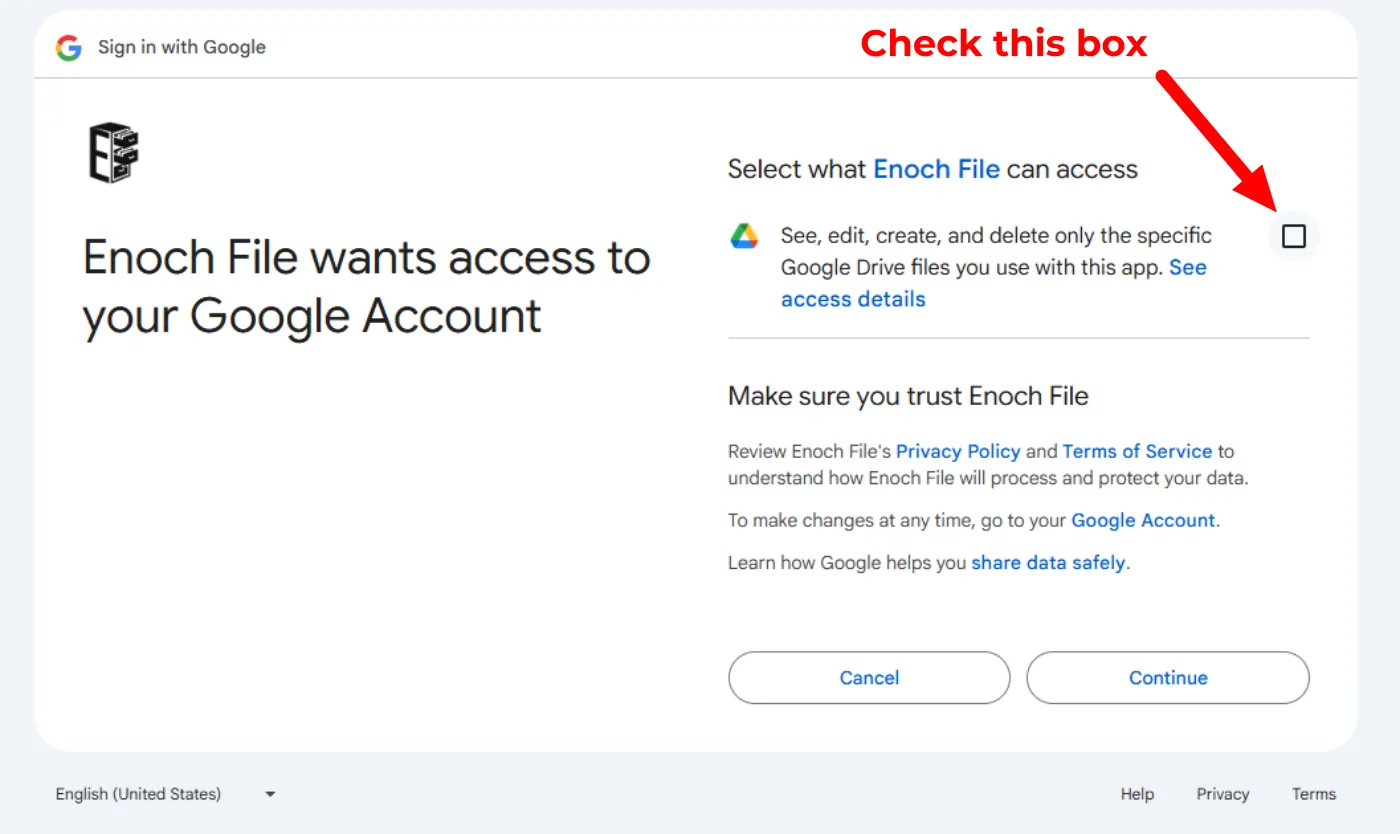
Every box needs to be checked before you click Continue. If any box is left unchecked, Enoch File won’t have the permission it needs to load your files, and you’ll land on an Access Denied error immediately after. This screen usually only appears the first time you log in, but Google may show it again after certain changes to your account or if you’ve revoked Enoch File’s access previously.
-
If you recently changed your Google password, log back in through the full Google sign-in flow so your session picks up the new credentials.
-
Clear your browser cache and cookies for enochfile.com. Stale cookies from a previous session can sometimes conflict with a fresh log-in.
-
Make sure third-party cookies aren’t being blocked for Google’s authentication domains and ours. Some browsers ship with third-party cookies disabled by default, and the sign-in flow depends on them.
-
If nothing above works, a browser extension is almost certainly the culprit. Security, privacy, ad-blocking, and “container” extensions can silently intercept the authentication cookies Enoch File relies on. Open a private or incognito window (which disables most extensions by default) and try logging in there. If it works in incognito, you’ve confirmed the cause.
Once you know an extension is the cause, you have two good options:
- Whitelist Enoch File in your extension’s settings. This is the best fix — you keep the extension’s protection everywhere else, and Enoch File works normally. Whitelist both
enochfile.com(the app itself) andenochworx.com(our website and log-in flow) — Enoch File uses both domains, and blocking either one can prevent you from logging in. - Disable the extension temporarily while you’re using Enoch File.
You can keep using an incognito window as a permanent workaround, but incognito forces a fresh log-in every session and doesn’t remember anything between visits. Whitelisting or disabling the extension is almost always the less painful path.
- Whitelist Enoch File in your extension’s settings. This is the best fix — you keep the extension’s protection everywhere else, and Enoch File works normally. Whitelist both
-
Try logging in on a different device. If it works on another device, the problem is specific to your original one — likely a browser configuration, an extension, or security software running outside the browser itself.
Still stuck?
Section titled “Still stuck?”If none of these steps get you back in, reach out through our Support page at enochworx.com/support and include:
- The browser and version you’re using (Chrome 128, Safari 17, etc.)
- Your operating system (Windows 11, macOS Tahoe, etc.)
- Whether the problem happens in an incognito or private window
Those three details are usually enough for us to spot the pattern quickly.