

How to Create, Rename, or Delete Cabinets, Drawers, and Folders
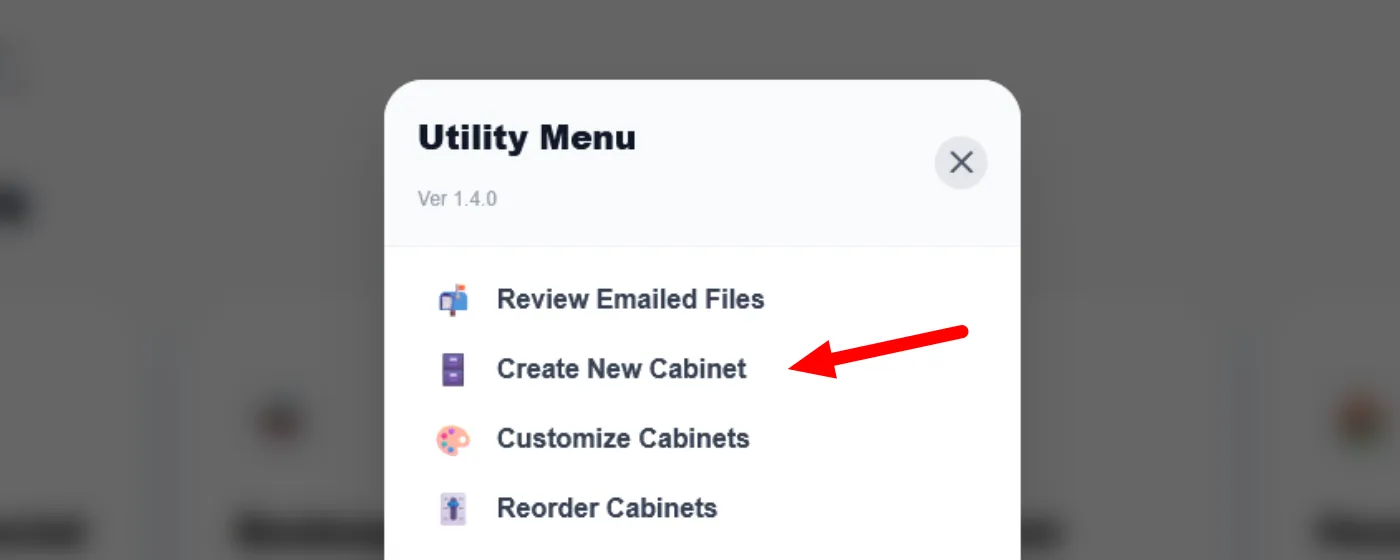
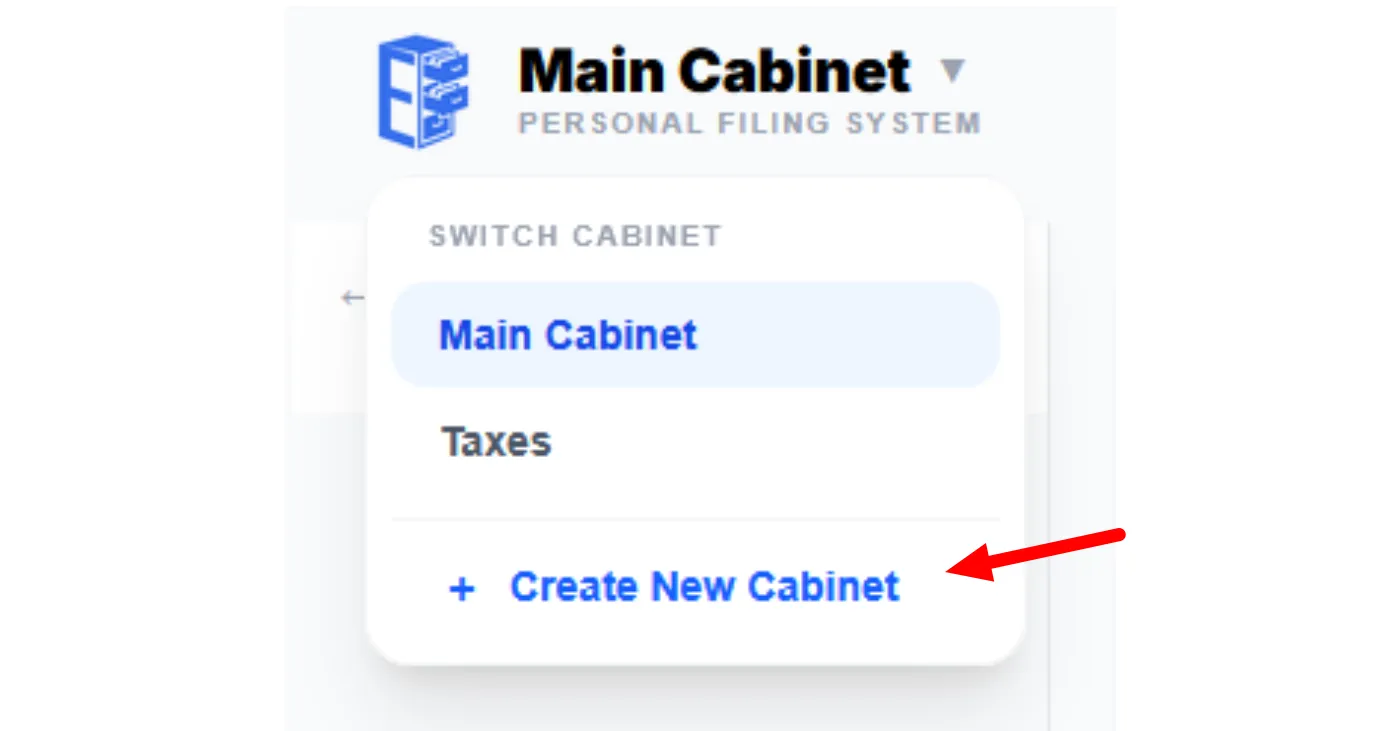
There are two ways Premium users can Create a New Cabinet:
- from the Utility Menu: Click the Utility Menu icon in the upper right, then select Create New Cabinet. Give it a name and it appears immediately.
- From the Cabinet Selector Menu: Click the cabinet selector in the upper left of the screen. In the dropdown, select + New Cabinet and give it a name.
To Create a New Drawer, navigate to a cabinet’s main page and click the blue “+ New Drawer” button on the right. Give the drawer a name and it will appear in your cabinet.

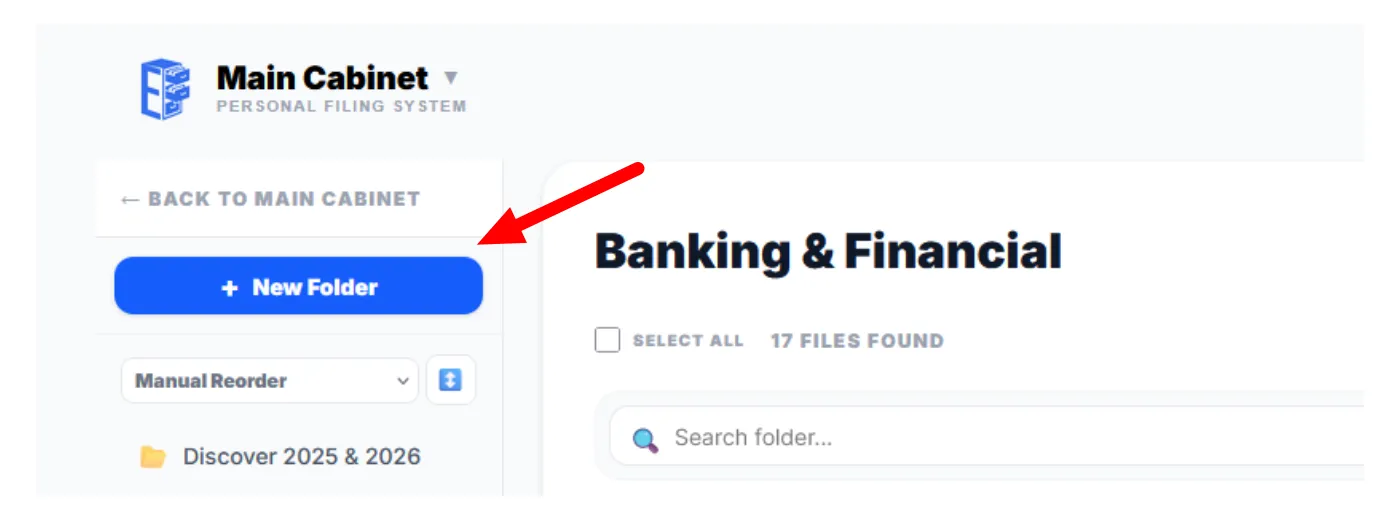
To Create a New Folder, click on the drawer where you want the folder to be located. Then select the blue “+ New Folder” button from inside any drawer. Give it a name and it will appear on the left-hand sidebar. Note that on small screens, like cell phones, you must open the sidebar to see the list of folders. While a drawer can hold multiple folders, they cannot be nested.
To rename any item, click the pencil icon and fill in the new name. On touch-screen devices, this may require a long press. On very small phone screens, renaming may not be available.
To delete a cabinet, drawer, or folder, it must first be empty. Move or archive its contents, then use the trash icon. This is intentional — we want you to be deliberate about deleting, not accidental.