

Fixing the 'Drive Access Needed' Error
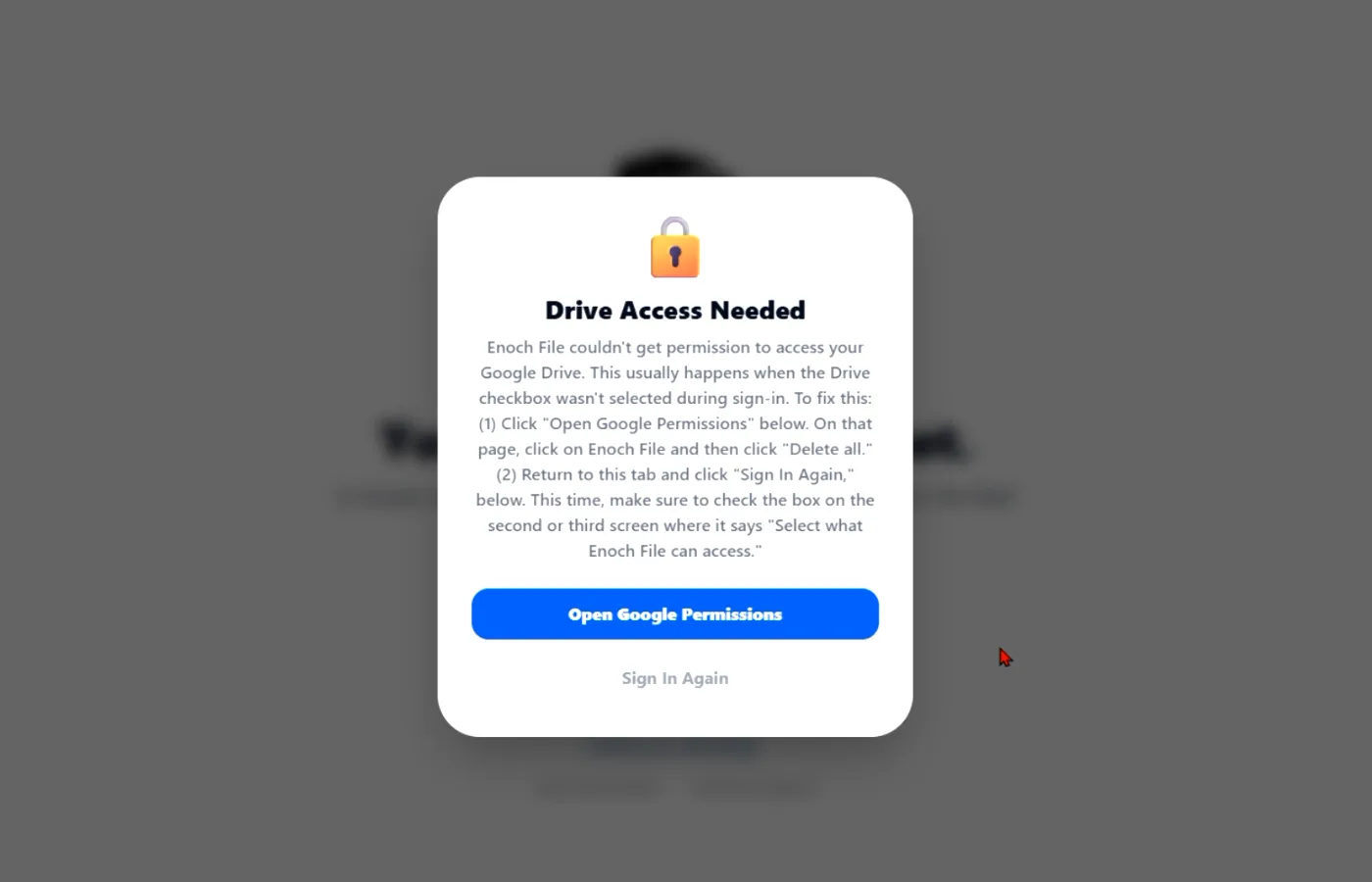
If you signed in with Google and landed on a Drive Access Needed warning, you’re almost certainly running into a small but critical error — a checkbox on Google’s sign-in flow that gets missed. This article explains what happened and how to fix it in about a minute.
What went wrong
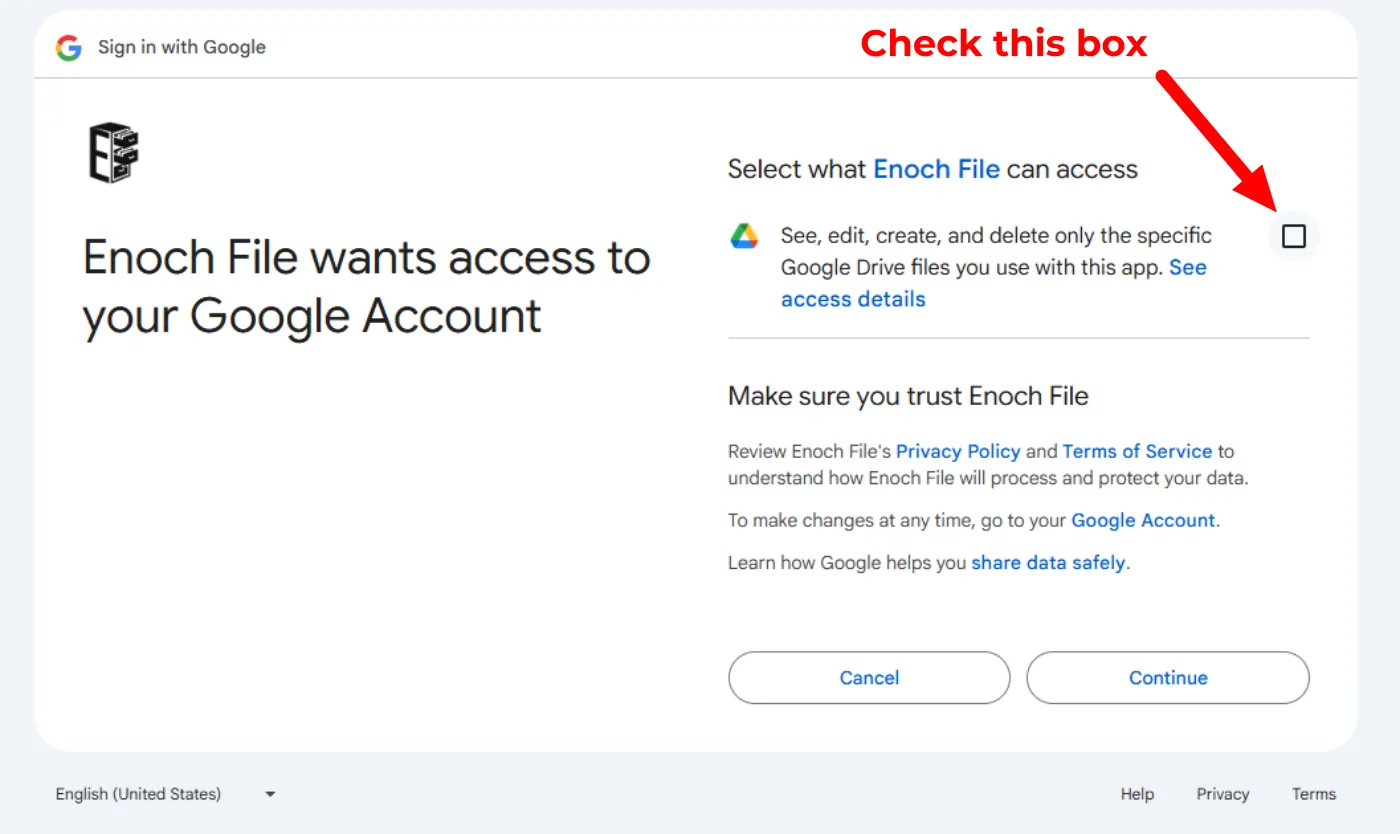
Section titled “What went wrong”When you sign in with Google, Google shows you several screens, one of which is a consent screen labeled “Select what Enoch File can access”. That screen lists the permissions Enoch File is asking for, each with a checkbox next to it. All of these boxes need to be checked for Enoch File to work.
The most important one — and the one most often missed — is the checkbox next to:
See, edit, create, and delete only the specific Google Drive files you use with this app.
If that box is left unchecked, Google gives Enoch File your name and email address but blocks access to your Google Drive. Since Enoch File stores every file, drawer, and cabinet in your own Drive, there’s nothing for the app to show you — which is why you see the Drive Access Needed warning instead of your file cabinet.
This is a Google privacy feature, not a bug. Google intentionally lets you approve some permissions and decline others through what they call “granular consent.” It’s designed to give you control, but it’s easy to miss because the checkbox is small and the screen looks like a routine sign-in confirmation.
How to fix it
Section titled “How to fix it”You have two paths. The first is faster; the second is more thorough if the first doesn’t work.
Option 1: Sign in again and check the box
Section titled “Option 1: Sign in again and check the box”-
On the Drive Access Needed warning, click Sign In Again.
-
When Google’s sign-in flow starts, watch for a screen labeled “Select what Enoch File can access” — it’s usually the second or third screen in the flow.
-
Look for the checkbox next to the Drive access line and make sure it’s checked. If it isn’t, click it once so a checkmark appears.
-
Click Continue to finish signing in.
That’s it. Enoch File should now load normally, with your cabinets and drawers visible.
Option 2: Reset your permissions from your Google Account
Section titled “Option 2: Reset your permissions from your Google Account”If Option 1 doesn’t work — for example, if Google skips the consent screen entirely because it remembers your previous choice — you’ll need to remove Enoch File’s existing permissions first, then start fresh.
-
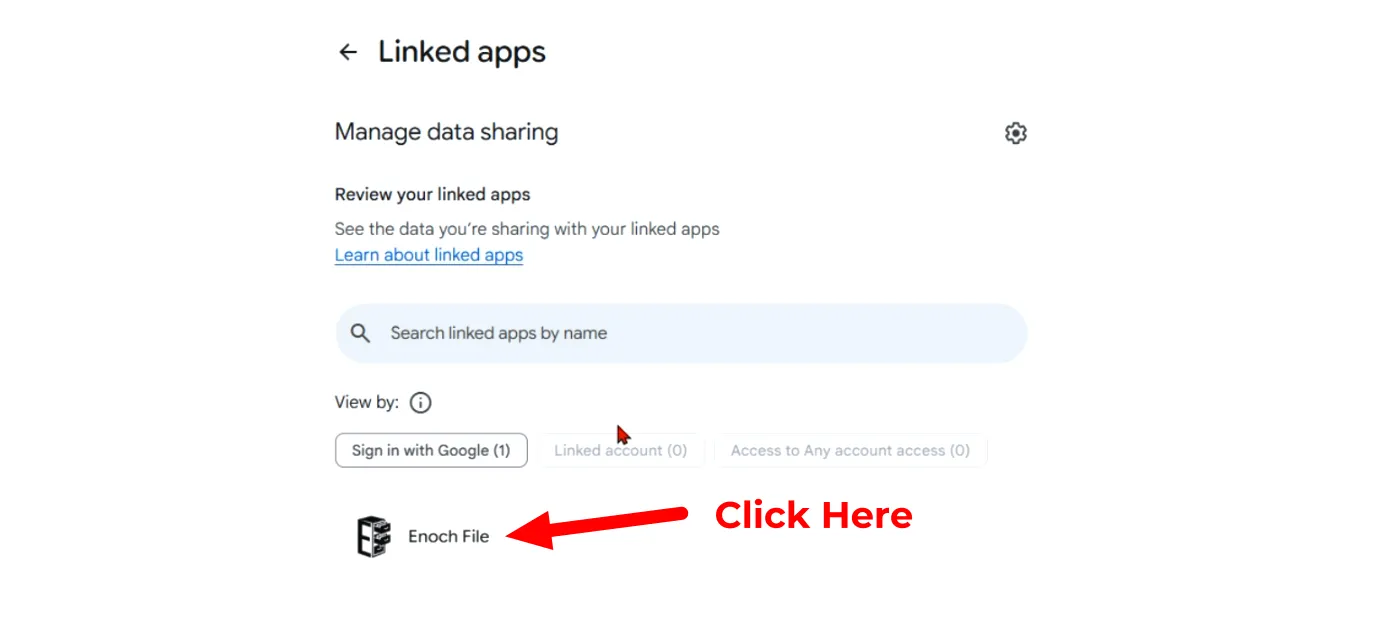
On the Drive Access Needed warning, click the blue Open Google Permissions button. It will open myaccount.google.com/permissions in a new browser tab.
-
Find Enoch File in the list of connected apps and click it.
-
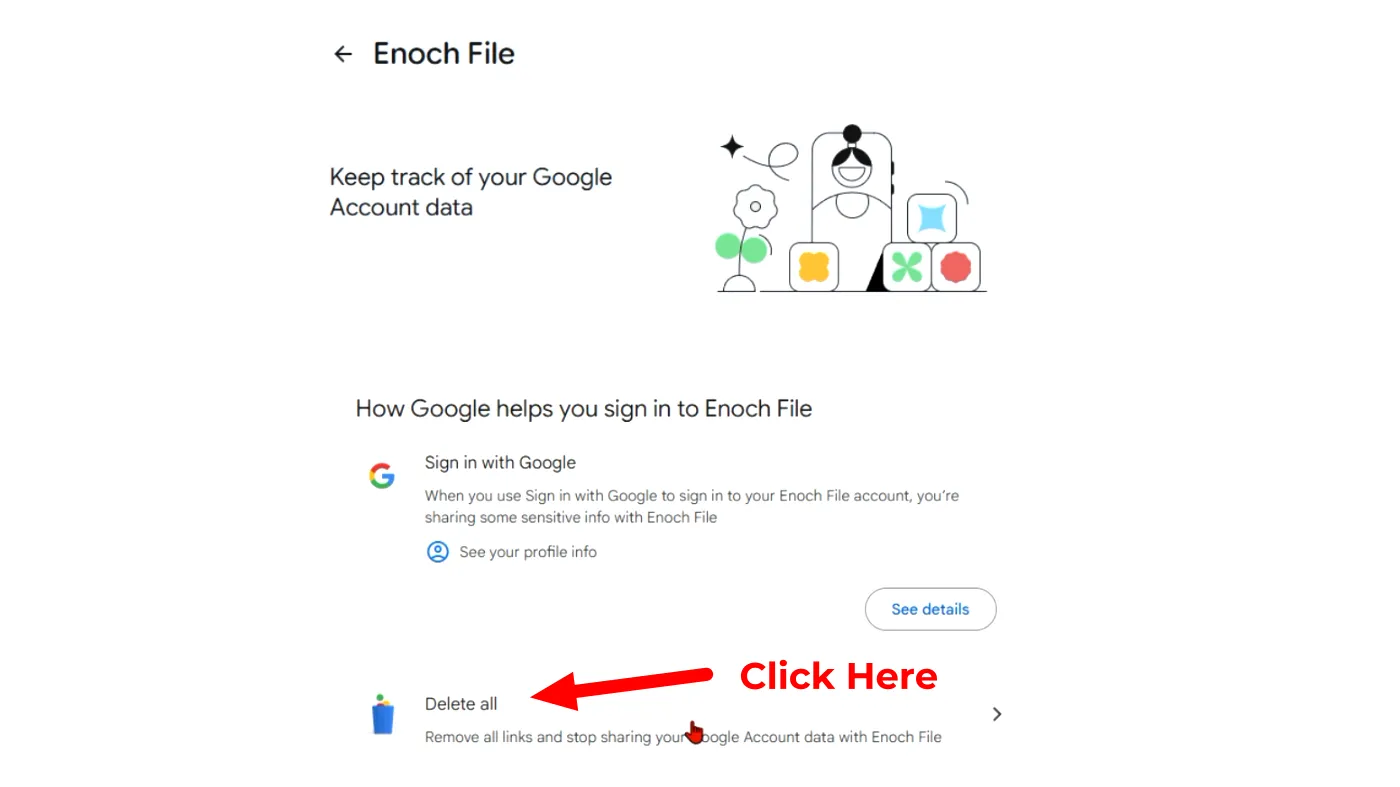
On the Enoch File permissions page, scroll down and click Delete all to remove Enoch File’s access completely.
-
Return to Enoch File and click Sign In Again to start over.
-
This time, Google will show you the full consent screen from scratch. Follow the steps in Option 1 to check the Drive access box before clicking Continue.
Why we can’t just fix this on our end
Section titled “Why we can’t just fix this on our end”You may be wondering why Enoch File doesn’t just re-request the permission automatically. Google’s rules require the permission grant to come directly from you, through their consent screen, in a new sign-in session. We can detect that the permission is missing — which is why we show you the Drive Access Needed warning instead of a blank screen — but we can’t check the box on your behalf. That would defeat the purpose of granular consent.
How to avoid this next time
Section titled “How to avoid this next time”- When you see Google’s “Select what Enoch File can access” screen, take a moment to confirm every checkbox on that screen is checked before clicking Continue. There may be just one, but there could be several.
- The Drive access checkbox is small, and it often appears on a different screen than the initial “Enoch File wants access to your Google Account” screen. Google’s flow order isn’t always the same across accounts, so watch for it on either the second or third screen.
- If you’re not sure what a permission does, click the linked text next to the checkbox. Google will explain it in plain language.
Still stuck?
Section titled “Still stuck?”If you’ve tried both options and are still seeing the Drive Access Needed warning or another error, we’re happy to help. Reach out through our Support page at enochworx.com/support and include:
- The email address you’re signing in with
- A screenshot of the screen you’re stuck on (if possible)
- Which of the two options above you’ve already tried
- Whether you saw the “Select what Enoch File can access” screen at all during your most recent sign-in attempt
That last detail helps us diagnose the issue faster — some sign-in problems have similar symptoms but different causes.