

Quick Search vs. Global Search
Enoch File gives you two search tools that do very different things. Quick Search narrows down what’s already in front of you. Global Search finds files you’ve lost track of. Knowing which one to reach for will save you a lot of time.
Quick Search: filter the folder you’re in
Section titled “Quick Search: filter the folder you’re in”Quick Search is really a filter more than a search. It’s the search bar that sits above the file list inside any drawer or folder, and it only looks at the files in the drawer or folder you’re currently viewing. It doesn’t reach into other folders, other drawers, or other cabinets.
As you type, the list below the bar narrows in real time to show only the files whose name or tags match what you’ve typed.
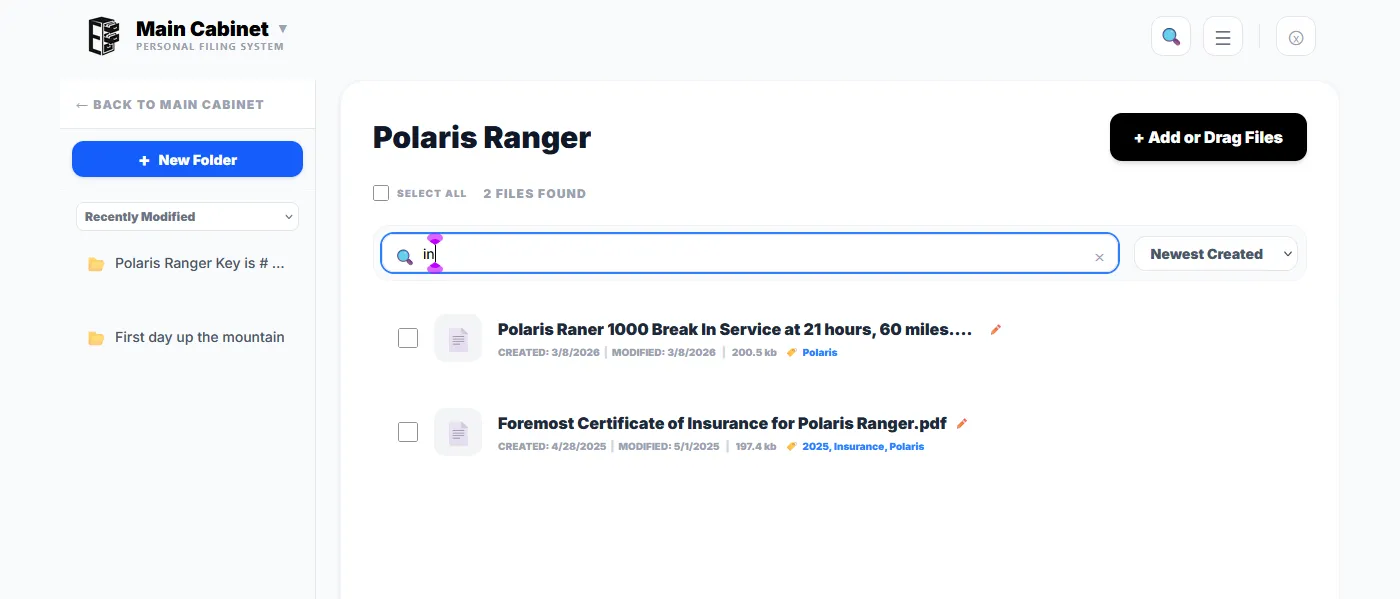
Quick Search is the right tool when you know a file is in the folder you’re looking at and just need to isolate it. If you know a document is in a specific folder but don’t want to scroll through everything in it, type a word from the title or a tag into the Quick Search bar. The list narrows as you type.
Global Search: find files across your cabinets
Section titled “Global Search: find files across your cabinets”Global Search is what you reach for when you don’t know where a file is. Say you’re looking for the receipt for a PlayStation you bought two years ago — you know it’s somewhere in Enoch File, but was it filed under Warranties, Receipts, or that catch-all Household drawer? Global Search will find it.
Open Global Search by clicking the 🔍 magnifying glass icon in the top right of your screen.

The modal gives you two decisions to make:
- Scope. Choose This Cabinet to search only the cabinet you’re currently viewing, or All Cabinets to search everywhere.
- Filter. Leave it off to match against file names, contents, and tags. Turn on Tags Only to match against tags alone.
These combine. Tags Only + This Cabinet finds tagged files inside the current cabinet. Tags Only + All Cabinets finds every file with that tag across your entire setup — a fast way to pull up everything you’ve tagged insurance, for example, no matter where you filed it.
The narrower the search, the faster it runs and the more specific the results. If you’re pretty sure which cabinet the file is in, start with This Cabinet before widening to All Cabinets.
Searching for an exact phrase
Section titled “Searching for an exact phrase”By default, Global Search treats each word in your query as an independent term. Searching for beef stew will find documents that contain both words, and often documents that contain just one.
To search for a specific phrase, put it in quotes. Searching for "beef stew" will find only documents with those exact words in that order.
Searching the Archive
Section titled “Searching the Archive”Archived documents don’t appear in Quick Search or Global Search results. If you’re looking for something that might be archived, open the Utility Menu and click View Archive to enter the Archive first. Both search tools work inside the Archive just as they do in your main cabinets — but only against archived files. See Archive vs. Trash: Know the Difference for more on how the Archive works.
- Tag consistently. The more consistent your tag vocabulary, the more useful Tags Only searches become. See How to Use Tags.
- Start narrow, then widen. Try This Cabinet before All Cabinets. If you don’t find it, widen the scope.
- Use quotes for anything you know verbatim. Invoice numbers, medication names, and other specific strings are perfect candidates for quoted searches.