

Sharing Files Outside of Enoch File
The easiest way to share a file with someone is to email it. That gets the job done, but it leaves you without any record of who has a copy, and no way to shut off their access if circumstances change. Enoch File’s built-in Share function (Premium) gives you both. You get a running list of everyone you’ve shared a file with, and you can revoke their access at any time from a single screen. The Share function is represented by the 🔭 telescope icon.
Sharing grants view-only access through Google Drive. The recipient can open the file, but they can’t edit, move, or delete your copy — and they can’t see anything else in your file cabinet. Like any file sent by email, a viewer who wants to keep a copy can download or print it.
How to share a file
Section titled “How to share a file”Open the file in the previewer and click the 🔭 telescope icon. Enter the recipient’s email address in the Share With field, add an optional message, and click Share.
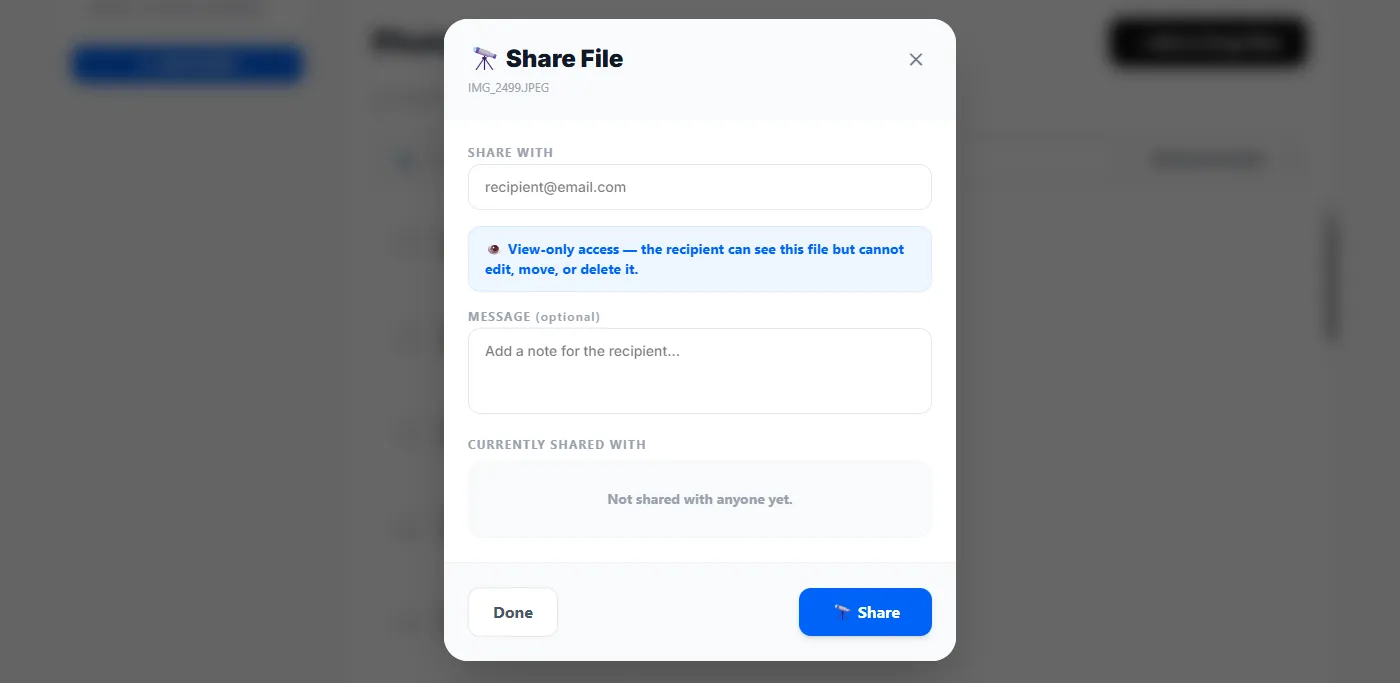
The recipient receives an automated email letting them know you’ve shared a file with them. From that email, they can open and view the file directly from your Google Drive.
The Shared indicator
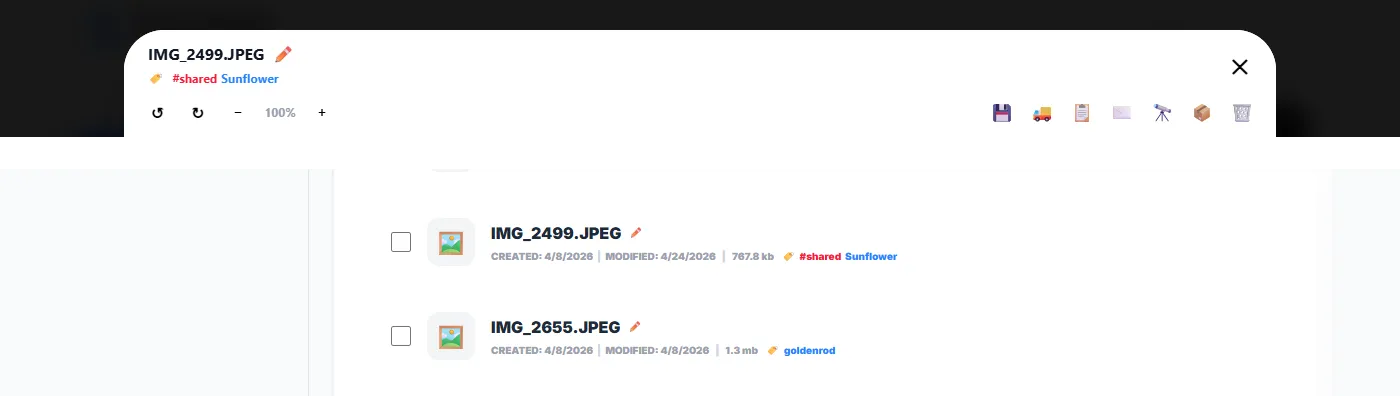
Section titled “The Shared indicator”When a file has been shared with at least one person, Enoch File flags it with a small red #shared tag next to any other tags — both in the file list and at the top of the previewer. This makes it easy to spot at a glance which files currently have viewers outside your account.
Reviewing and revoking access
Section titled “Reviewing and revoking access”Once you grant someone permission to view a file, they’ll keep that access until you revoke it or delete the file. Archiving the file does not revoke access — the recipient can still view it from your Google Drive after it’s been archived.
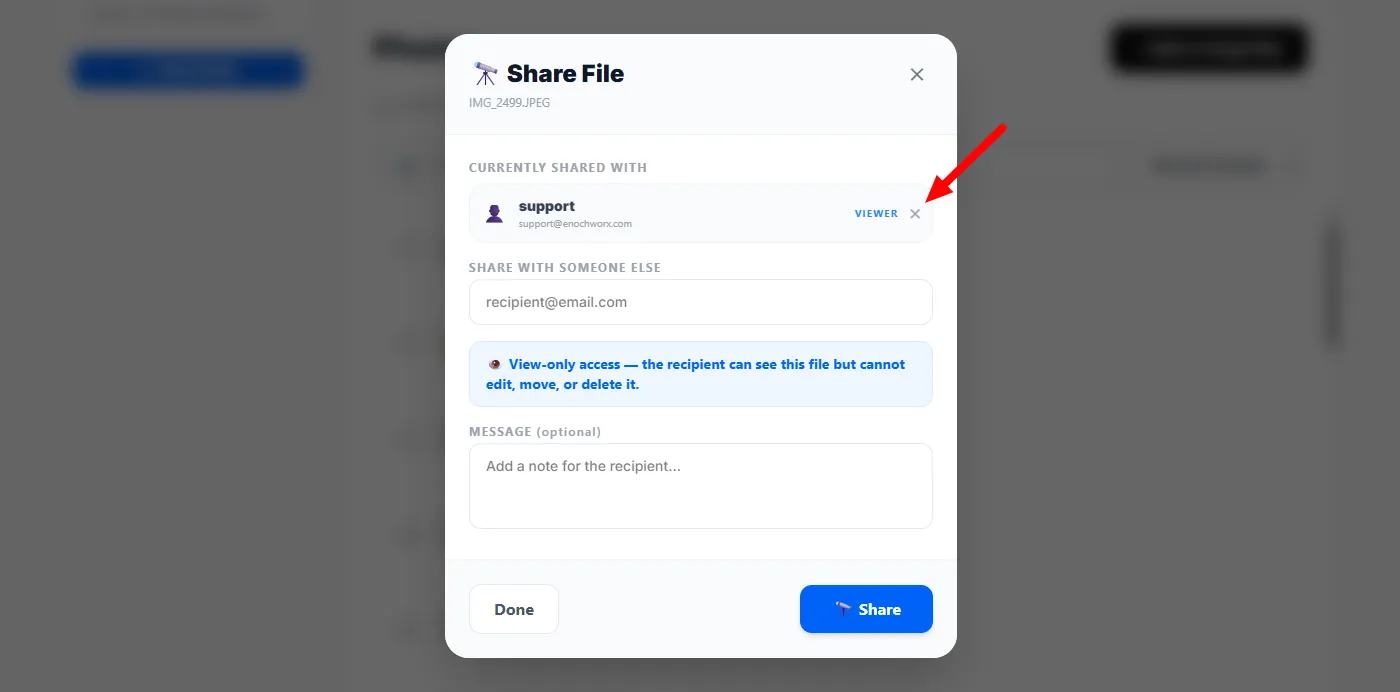
To see who currently has access, click the 🔭 telescope icon again, or click the red #shared tag. The Currently Shared With section lists every recipient. To remove someone, click the × next to their name and Viewer label.
- Revisit your shares periodically. The red
#sharedtag makes it easy to find files currently being shared. If a share was for a short-term purpose — an insurance claim, a school form, a real estate transaction — circle back and revoke access once it’s no longer needed. - Sharing isn’t available in bulk actions. You have to share one file at a time. See How to Use Bulk Actions for what bulk actions do cover.