

How to Upgrade from Free to Premium
If you’ve been using Enoch File on the Free plan and you’re ready to move up, upgrading takes about a minute and your Premium features light up as soon as the payment confirms. This article walks through where to upgrade, what the checkout looks like, how to apply a promo code, and what unlocks the moment the subscription is active.
For a side-by-side of what Free includes and what Premium adds, see What’s the difference between Free and Premium?.
Go to My Account
Section titled “Go to My Account”Upgrading happens on your My Account page at enochworx.com/admin. It lives on the main Enoch Worx website — not inside the Enoch File app itself — though the Manage Account item in your Enoch File Utility Menu takes you to the same place. Either way, you’ll land at My Account.
Once you’re there, you’ll see an Upgrade Your Account section near the top of the page. It only appears for Free accounts, so if you’re already on Premium you won’t see it.

Both plans unlock the same Premium features. Monthly gives you the flexibility to cancel any month — an easier way to try Premium if you’re not ready for a bigger commitment. Annual costs meaningfully less over the course of a year and is the natural pick once you know Enoch File is a fit for you.
Choose a plan and confirm
Section titled “Choose a plan and confirm”Click Go Monthly or Go Annual. A Confirm Upgrade window opens where you can review your choice, apply a promo code if you have one, and authorize the charge.
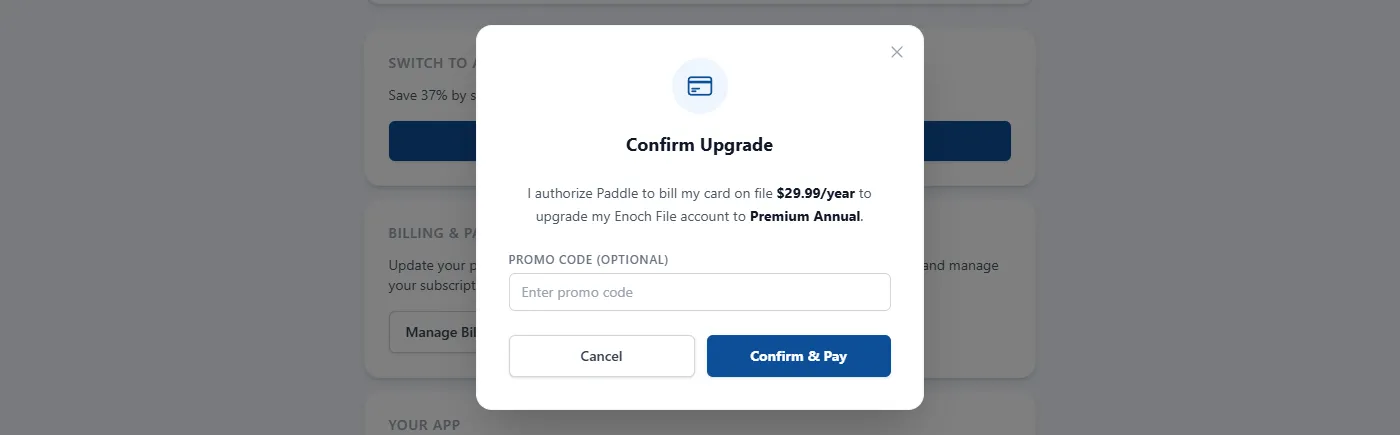
The charge goes to the card you have on file with Paddle from your original signup. If you need to update your card first, close this window and scroll down to Billing & Payments on your My Account page, then click Manage Billing to open a Paddle-hosted portal where you can change your payment method. Come back and click Go Monthly or Go Annual again once your card is current.
When your card is set and you’ve entered any promo code in the Promo Code (Optional) field, click Confirm & Pay. Enoch File sends the request to Paddle in the background, and Paddle bills your card.
What happens after you confirm
Section titled “What happens after you confirm”Once the charge goes through, your My Account page updates to reflect your new Premium status and shows you a success message with the exact amount charged, any applicable tax, and the last four digits of the card that was billed. Your Premium features are live as soon as the confirmation completes.
Paddle handles the payment on our behalf as our Merchant of Record. Your card details live with Paddle, not with Enoch File — the last four digits are all we ever see, and nothing is stored on our side. Paddle emails you a receipt for the charge, and any time you need to pull up an invoice, view your billing history, update your payment method, or change plans, return to My Account and click Manage Billing. That opens a Paddle-hosted portal with everything you need.
If the upgrade doesn’t seem to have taken
Section titled “If the upgrade doesn’t seem to have taken”Very occasionally the charge confirms but the page takes a beat to catch up. If the Upgrade Your Account section is still showing a minute or two after Confirm & Pay, log out and log back in — that always resets your account status. If it’s still there after that, check your email — if the Paddle receipt arrived, the charge went through, and a quick note to Support will get things reconciled.