

How to Customize a Cabinet's Appearance
If you only have one cabinet, customizing its appearance is mostly personal preference. But once you have two or more cabinets — say, one for personal documents and one for business — giving each cabinet its own color makes switching between them faster and more intuitive. A glance at the color tells you where you are.
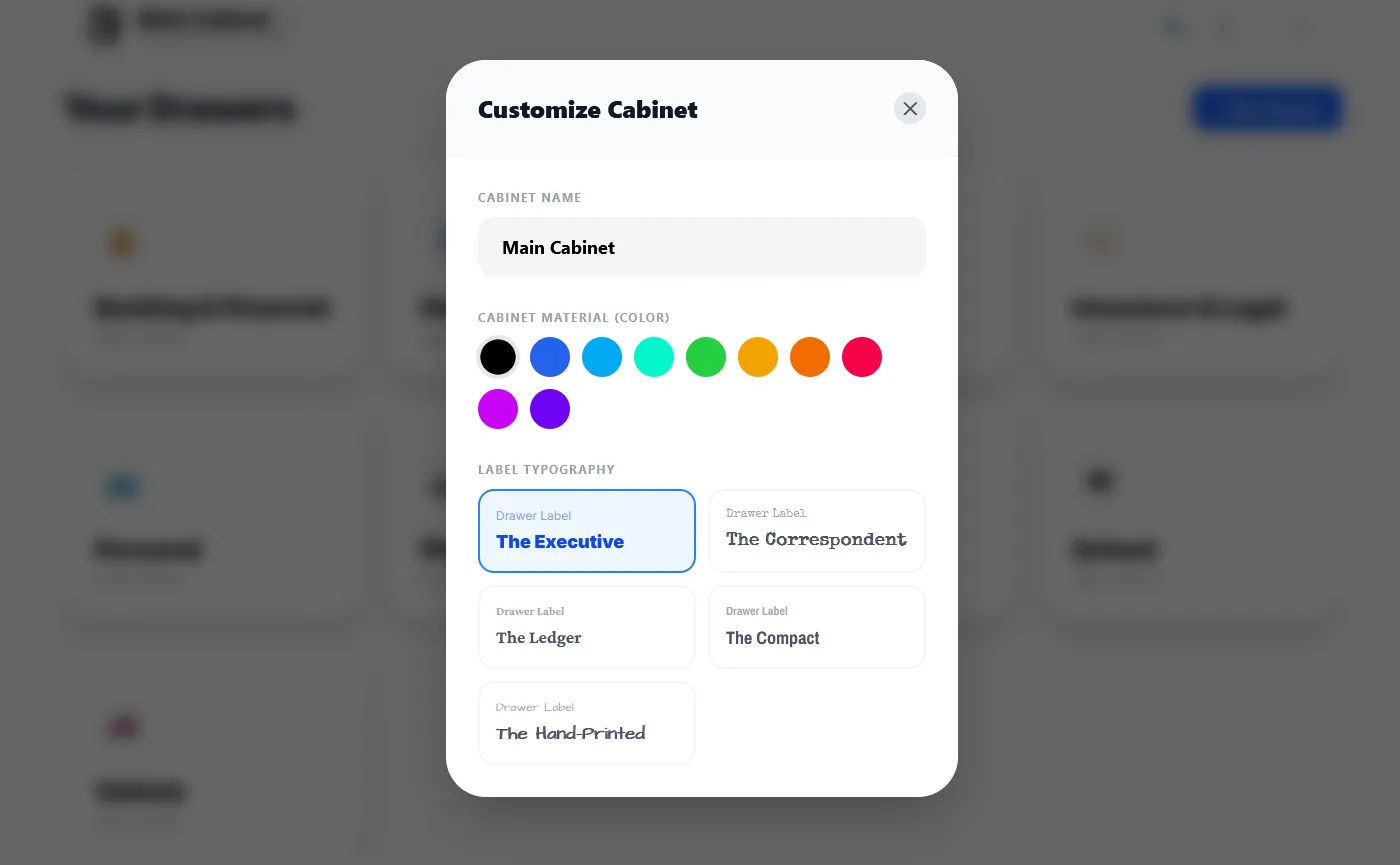
To customize a cabinet, open the Utility Menu and select Customize Cabinets. From there, you can adjust three things:
- Color: Choose from the available color swatches. Pick something distinct for each cabinet so you can tell them apart at a glance.
- Font: Choose the font used for cabinet and drawer labels. If you used longer names for your drawers, selecting the Compact font will let you fit more letters in the space available.
- Name: Change the cabinet’s name by editing the name shown at the top of the customization screen.
Your choices are applied immediately, so you can experiment freely — if you don’t like the result, just change it back or try something else.
A few ideas for using color meaningfully:
- Blue for Personal, green for Business — the classic split
- One color per family member if you keep separate cabinets for each person’s records
- Warm colors (red, orange) for cabinets you access often, cool colors (blue, teal) for archival or reference cabinets
To customize a drawer’s emoji icon, see How to Customize a Drawer’s Appearance.