

How to Import Files from Evernote
Importing from Evernote is a two-step process, repeated once for each notebook you want to move over. If you’d rather watch than read, there’s a four-minute walkthrough at the bottom of this page.
The two-step import process
Section titled “The two-step import process”Step 1: Export the notebook from Evernote
Section titled “Step 1: Export the notebook from Evernote”Open Evernote and right-click the notebook you want to export. Select Export Notebook. In the export dialog, make sure ENEX Format is selected and every box under Export Attributes is checked. Click Export and save the resulting .enex file to your hard drive.
Step 2: Import the ENEX file into Enoch File
Section titled “Step 2: Import the ENEX file into Enoch File”In Enoch File, first navigate to the cabinet where you want the Evernote notebook to live. Once you’re in the destination cabinet, open the Utility Menu and click Import from Evernote.
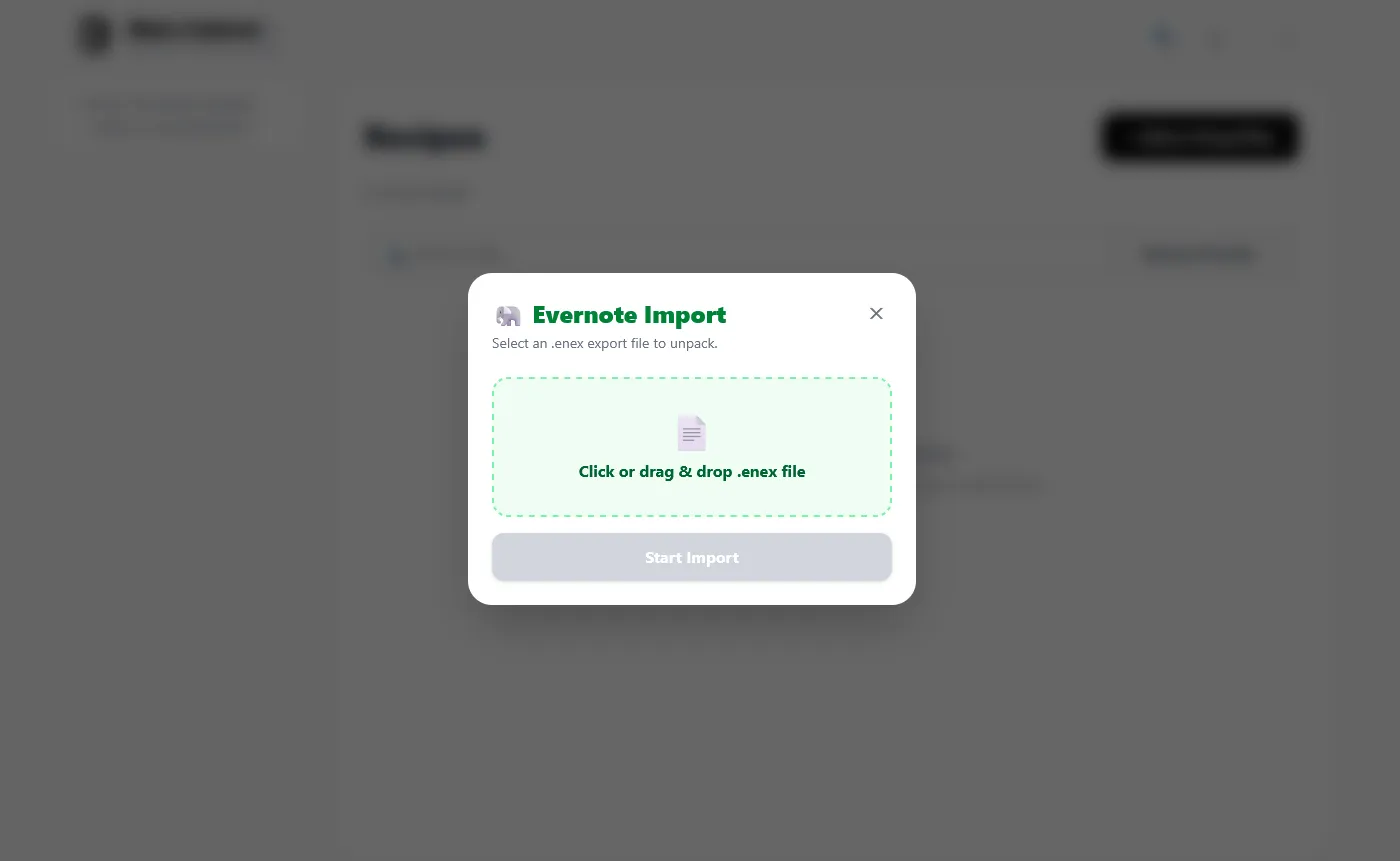
Select your .enex file or drag it into the green landing zone, then click Start Import. Your notes will be imported into their own drawer inside the current cabinet. The drawer takes its name from your old notebook, and each file takes its name from the corresponding note. You can leave everything where it lands or move files wherever you want them.
Watching the import progress
Section titled “Watching the import progress”Once the import is running, you’ll see a progress bar showing which file is currently uploading and how many notes remain. A big notebook may show something like “Note 11 of 429” as it works through your export.
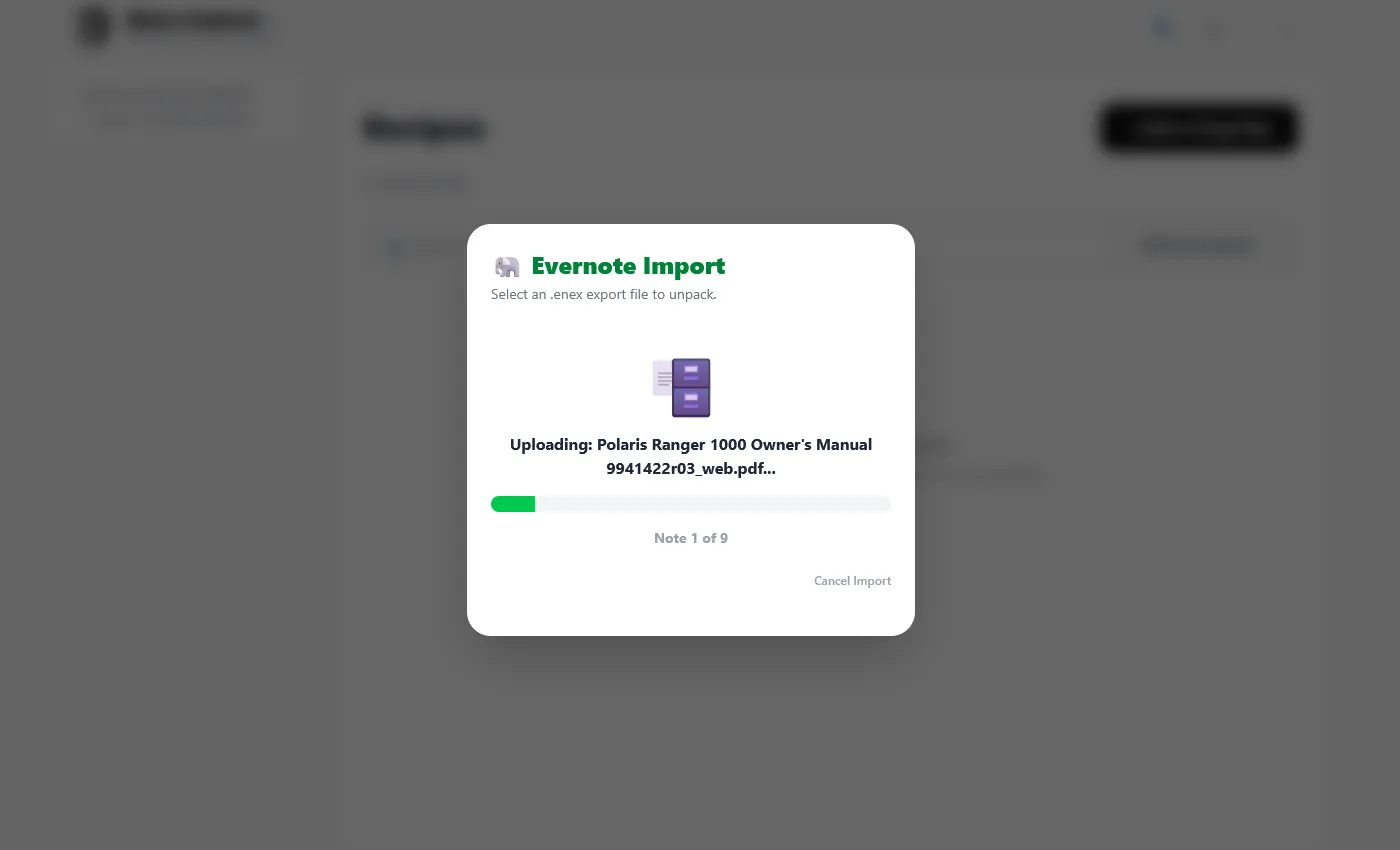
There’s a Cancel Import option, but treat it as emergency-only. If you cancel partway through and then re-import the same notebook later, you’ll create duplicate files for everything the first pass already brought in.
How to import like a pro
Section titled “How to import like a pro”A few habits that make large migrations go more smoothly:
- Create a dedicated cabinet first if you have more than four or five notebooks. Something like Imported Notebooks keeps your Evernote migration self-contained and easy to reorganize later. Switch to that cabinet before starting each import.
- Do a small notebook first as a test run. A few dozen notes is plenty to give you a feel for how the process works and roughly how long different file types take to process.
- Expect large notebooks to take real time. A notebook with 1,000+ files can take about an hour unless you have a very fast upload connection. Images, videos, and other large files take longer than PDFs and Office documents.
- Disable sleep on your computer for long imports. If you’ll be walking away mid-import, make sure your machine won’t shut off partway through.
- Break up giant notebooks before you export. If a single Evernote notebook has thousands of files, splitting it into smaller notebooks before you create the ENEX file makes the import more manageable and easier to resume if something goes wrong.
- Skip cellular data. Importing on a phone hotspot or over a mobile connection is slow, expensive, and prone to interruptions. Use Wi-Fi.
- Your Evernote tags come with you. Tags on the original notes are preserved and searchable in Enoch File once the import completes.