

How to Revoke Enoch File's Access to Your Google Drive
You can disconnect Enoch File from your Google Drive at any time from your Google Account settings. It takes about a minute. Your files stay in your Google Drive exactly as they are — nothing is deleted — and you can reconnect later by signing in to Enoch File again.
The connection between Enoch File and your Google Drive lives in your Google Account, not on our side. That means Google, not Enoch File, is the one that grants and revokes the access — which is why the steps below all happen at myaccount.google.com, not inside Enoch File itself.
How to revoke access
Section titled “How to revoke access”-
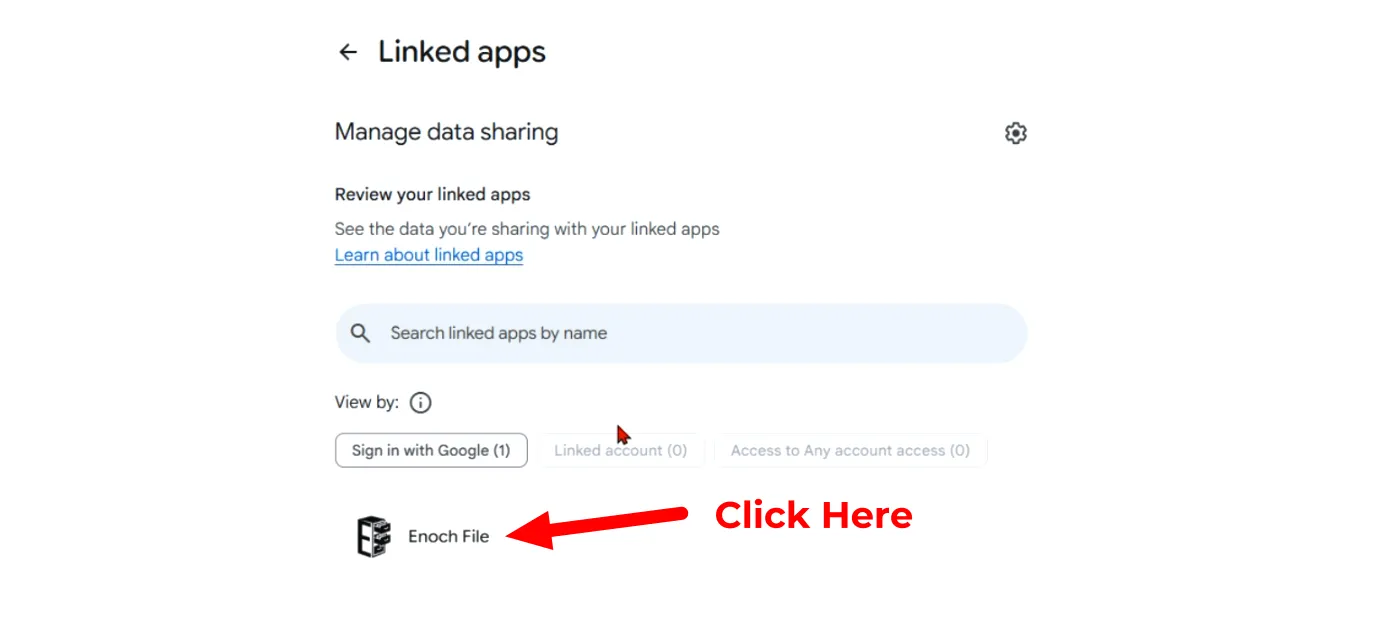
Go to myaccount.google.com/permissions. This opens Google’s Linked apps page directly.
-
Find Enoch File in the list under Sign in with Google and click it.
-
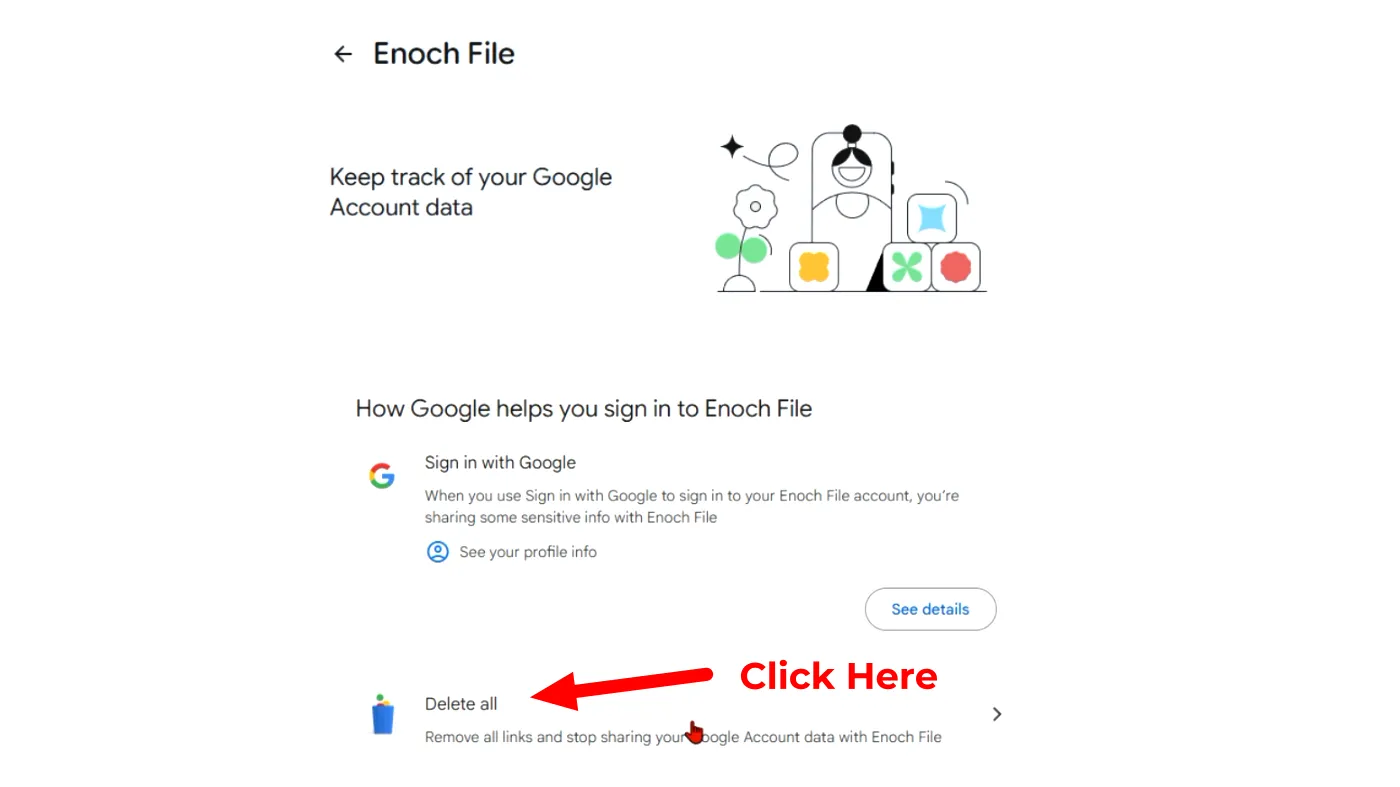
On the Enoch File page, scroll to the bottom and click Delete all.
-
Confirm the removal when Google prompts you.
That’s it — Enoch File no longer has access to your Google Drive.
What happens to your files and your account
Section titled “What happens to your files and your account”Your files stay in your Google Drive. Everything you uploaded, emailed in, forwarded, imported, or scanned through Enoch File remains in Drive in the folders Enoch File created — that content has always belonged to your Drive. What changes is that Enoch File can no longer see, display, or organize it.
Your Enoch File account is still active. Revoking Drive access disconnects the Google integration, but your name, email address, and subscription details stay on file until you actively close your account. If you want to leave Enoch File entirely — including canceling any Premium subscription and requesting deletion of your account information — request that separately through our Contact page.
How to reconnect later
Section titled “How to reconnect later”If you decide to come back, sign in to Enoch File and go through Google’s sign-in flow again. When Google shows you the consent screen labeled “Select what Enoch File can access,” be sure to check the box next to the Google Drive permission — without it, the app can’t reach your files. Once you’re through the sign-in flow, your cabinets and drawers will appear as you left them.
If you sign back in and see a Drive Access Needed warning instead, see Fixing the ‘Drive Access Needed’ Error for the fix.