

Moving Files, Folders, and Drawers
Enoch File lets you move things around freely. A file can be moved to any folder in any drawer. A folder can be moved to any drawer. A drawer can be moved to any cabinet. Nothing is locked in place — if a document ends up somewhere that no longer makes sense, you can put it where it belongs.
Moving a single file:
To move a file, click the 🚚 truck icon next to the file in the list, or right-click the file and choose Move. You can also move a file from the preview screen by clicking the truck icon there.
Any of these opens the Move File destination selector.
Moving multiple files at once:
To move several files at once, use the checkboxes to select them and then click the 🚚 truck icon in the bulk action toolbar. See How to Use Bulk Actions for the full walkthrough.
Moving folders and drawers:
The same 🚚 truck icon works for folders and drawers.
- Folders can be moved to any drawer in the current cabinet, or to a drawer in another cabinet.
- Drawers can be moved to any cabinet.
Reading the destination selector:
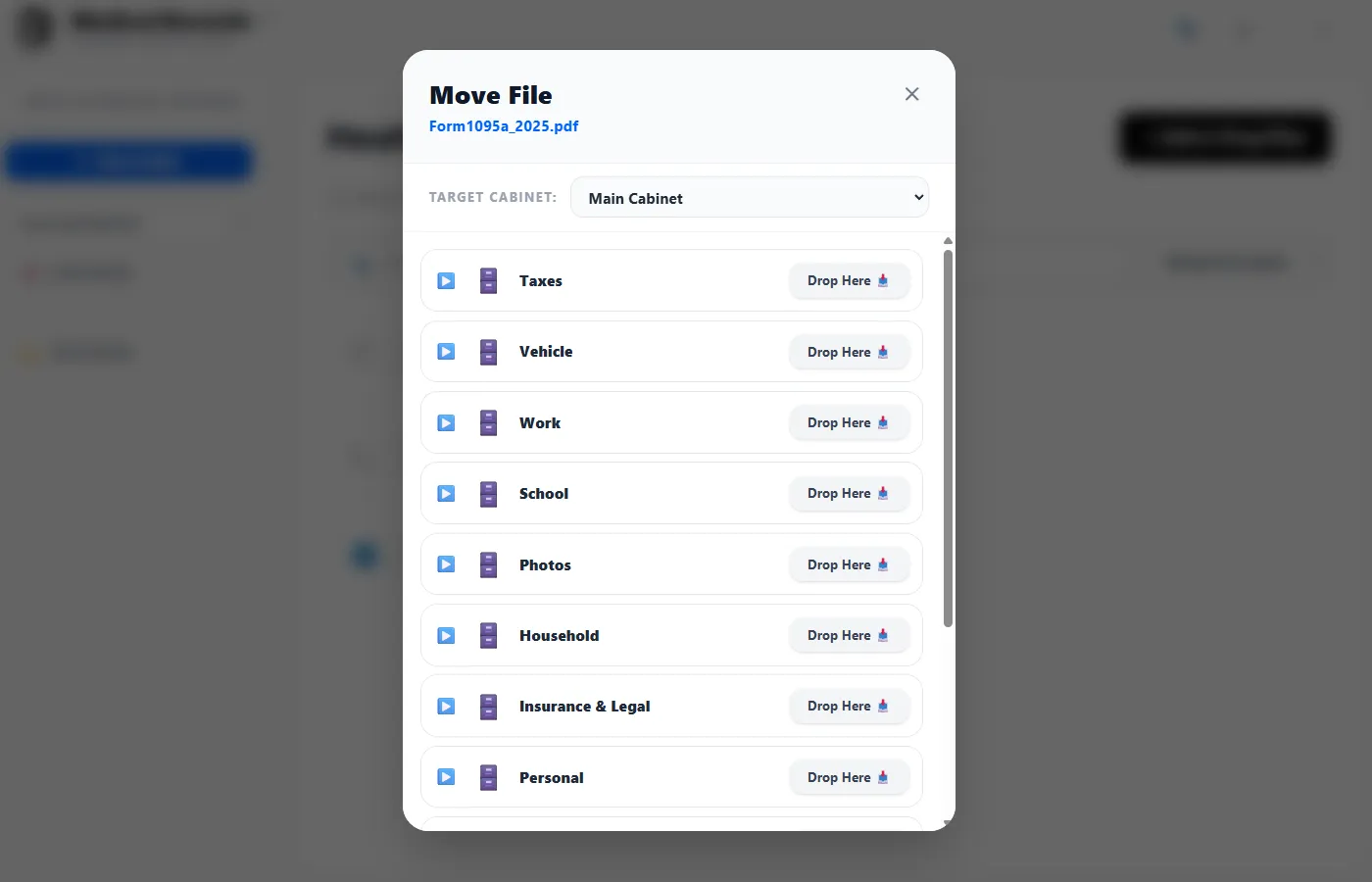
The Move File window shows two things:
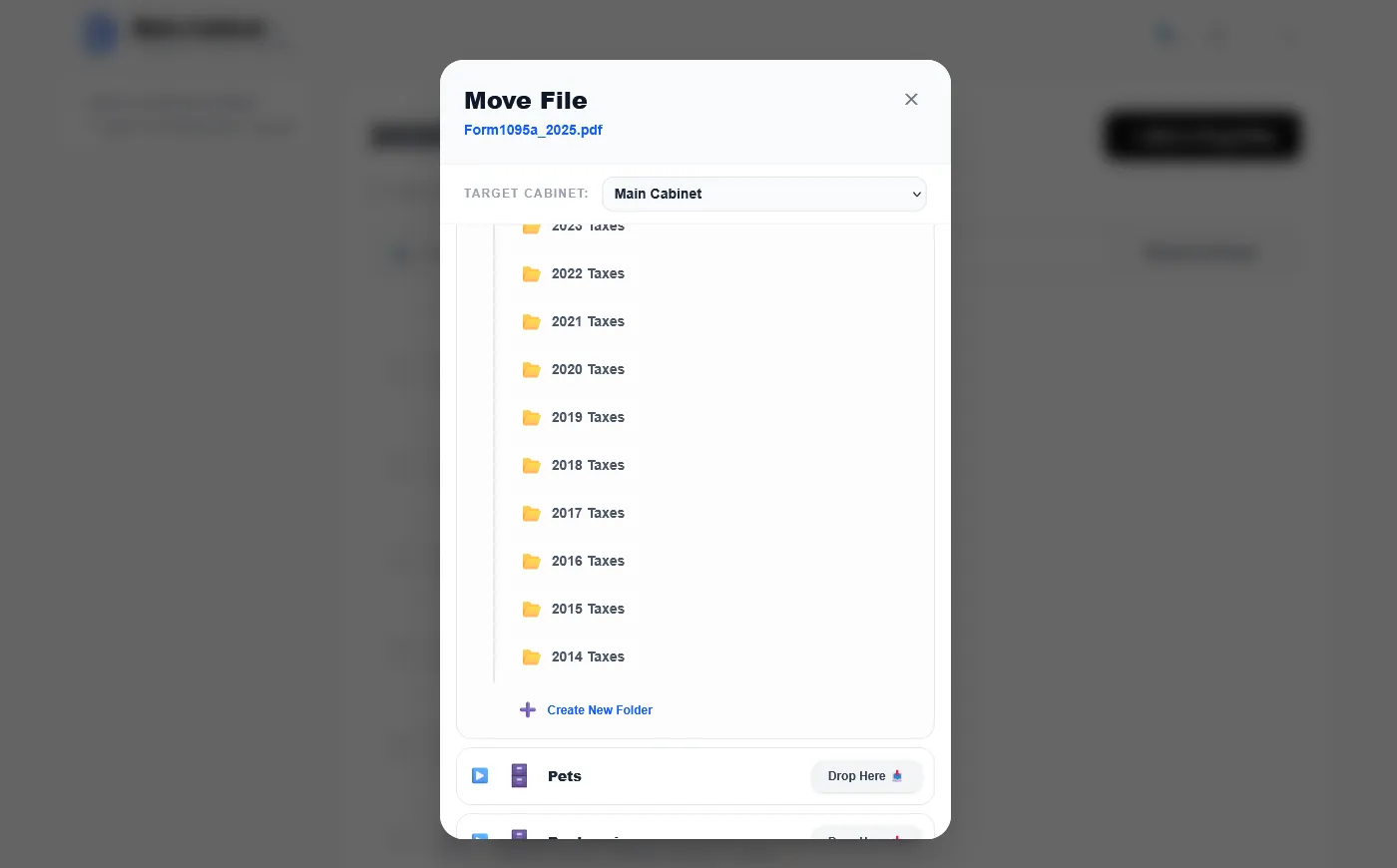
- At the top, a Target Cabinet dropdown. Use this to move an item to a drawer or folder in a different cabinet.
- Below that, a list of destinations in the selected cabinet. Drawers are shown as rows with a Drop Here button. Click the blue triangle to the left of a drawer to expand it and see the folders inside.
Creating a new folder or drawer on the fly:
You don’t have to leave the Move window if the destination you want doesn’t exist yet.
- To create a new folder, expand any drawer and scroll to the bottom of its folder list. Click + Create New Folder, give it a name, and then select the newly created folder.
- To create a new drawer, scroll to the bottom of the drawer list and click + Create New Drawer. Give it a name, then select the drawer. If you’re moving a file (not a folder), you can create a new folder inside the new drawer using the same steps as above.
This is especially useful when you’re cleaning up files that were imported to a temporary location and now need new homes — you can build the right destination structure as you go. It is also useful when moving files you emailed yourself that end up in the unfiled drawer and need a more permanent home.
A note on empty folders and drawers:
Moving all files out of a folder or drawer leaves it empty, not deleted. If you’re done with it, you can delete the empty folder or drawer separately. See How to Create, Rename, or Delete Cabinets, Drawers, and Folders for the delete instructions.