

Emailing documents from Enoch File
You can email documents directly from Enoch File to any address without having to download them first. It’s a quick way to send a single file — a receipt to your accountant, an insurance card to a family member, a signed permission slip to a coach — or to package several files together into one email.
Sending a single document
Section titled “Sending a single document”While viewing a folder or a search result, find the file you want to send and click the ✉️ envelope icon to the left of the file’s name. The Send Email dialog opens with your file already attached.
Sending multiple documents at once
Section titled “Sending multiple documents at once”To send more than one file in the same email, check the boxes to the left of each file’s name, then click the ✉️ envelope icon in the bulk action toolbar near the top of the screen.
The files don’t need to be in the same folder. If the documents you want are scattered across drawers, run a search to bring them together in the results, then check the boxes on the ones you want and use the same envelope icon. Enoch File will attach every selected file to a single email.
For more on selecting and acting on multiple files at once, see How to Use Bulk Actions.
Filling out the email
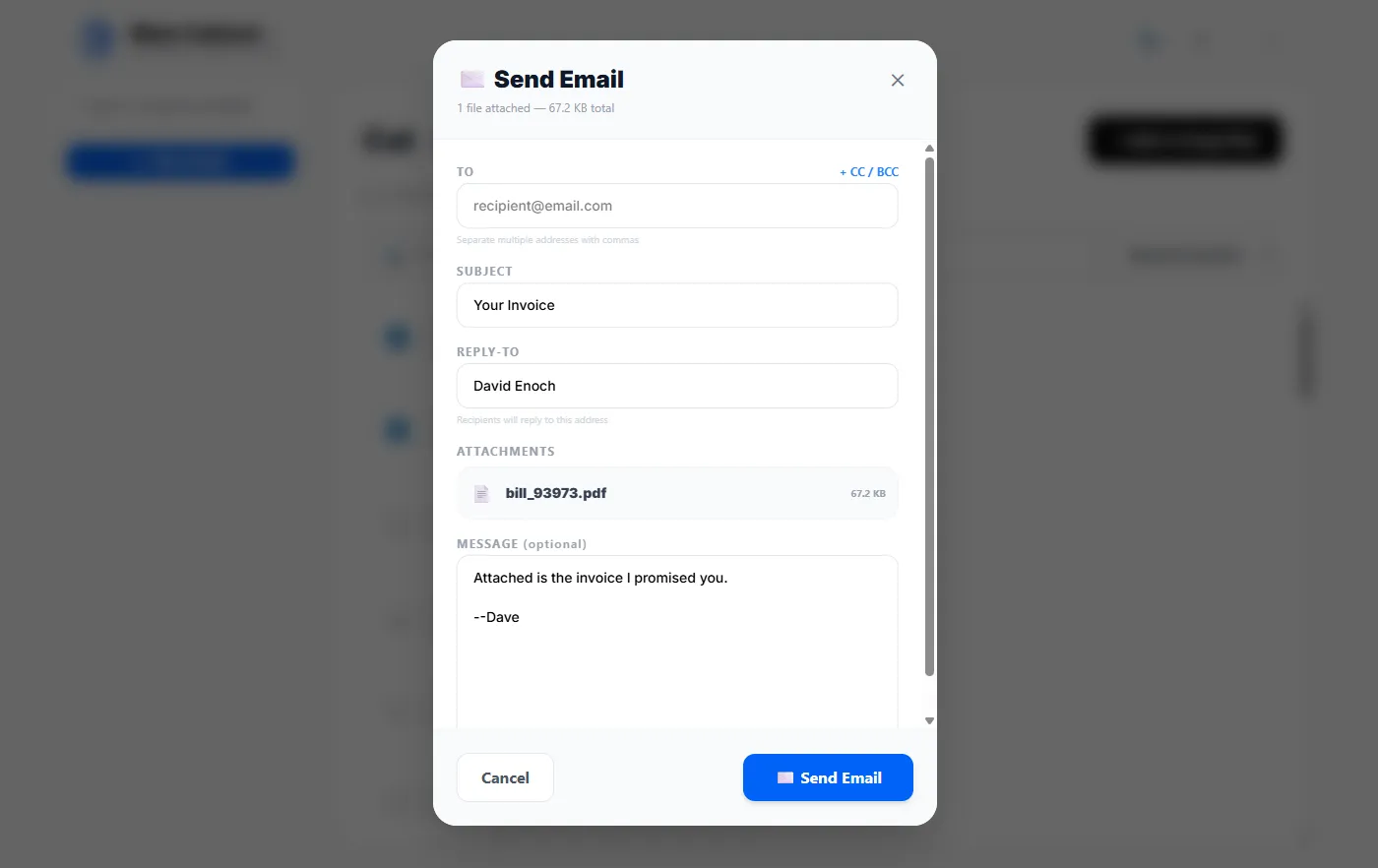
Section titled “Filling out the email”The Send Email dialog works like the compose window in any email client, with a few things worth knowing:
- To is required. Separate multiple addresses with commas. Click + CC / BCC in the top-right of the dialog if you need to copy or blind-copy anyone.
- Subject is also required — the email won’t send without one. Keep it descriptive enough that the recipient knows what’s inside at a glance.
- Reply-To controls where replies will go when the recipient hits Reply. It’s pre-filled based on your account, so most of the time you can leave it alone. Change it if you want replies to land at a different address than the one associated with your account.
- Message is optional. Think of it as a cover note — a short line of context for the recipient. Leave it blank if the attachment speaks for itself.
- Attachments shows the files you’ve already selected. You can’t add more from inside this dialog — close it, select the additional files in your cabinet, and start a new email.
When everything looks right, click Send Email.
When six or more files auto-zip
Section titled “When six or more files auto-zip”If your email includes six or more attachments, Enoch File automatically packages them into a single .zip file before sending. This keeps the email compact for your recipient and stays well within the size limits most mail providers enforce. Your recipient just needs to double-click the zip file to unpack the documents inside.
Attachment limits
Section titled “Attachment limits”Every email sent from Enoch File is capped at 10 files and approximately 20 MB total. If you try to attach more than that, you’ll get an error and the email won’t send.
If a set of files won’t fit, you have a few options: split them across multiple emails, or — if it’s a single oversized file — share it from your cabinet instead. Sharing sends a link rather than the file itself, so size limits don’t apply. See Sharing Files Outside of Enoch File for the full walkthrough.
For more on what to expect while an email is being prepared, see Why does sending files by email sometimes take a while?.
For the caps on how many recipients you can email in a day (and per message), see Why are there outbound email limits?.