

Importing files from OneNote and other cloud services
Enoch File has dedicated import paths for Evernote and Google Drive, but not for every cloud service. That doesn’t mean you can’t bring files in from OneNote, iCloud, Dropbox, Box, or anywhere else — it just means the path is one step longer. If you can store it there, you can store it here.
The general approach
Section titled “The general approach”For any cloud service without a dedicated importer, the workflow is the same:
- Sync or download the files from the cloud service to your computer’s hard drive.
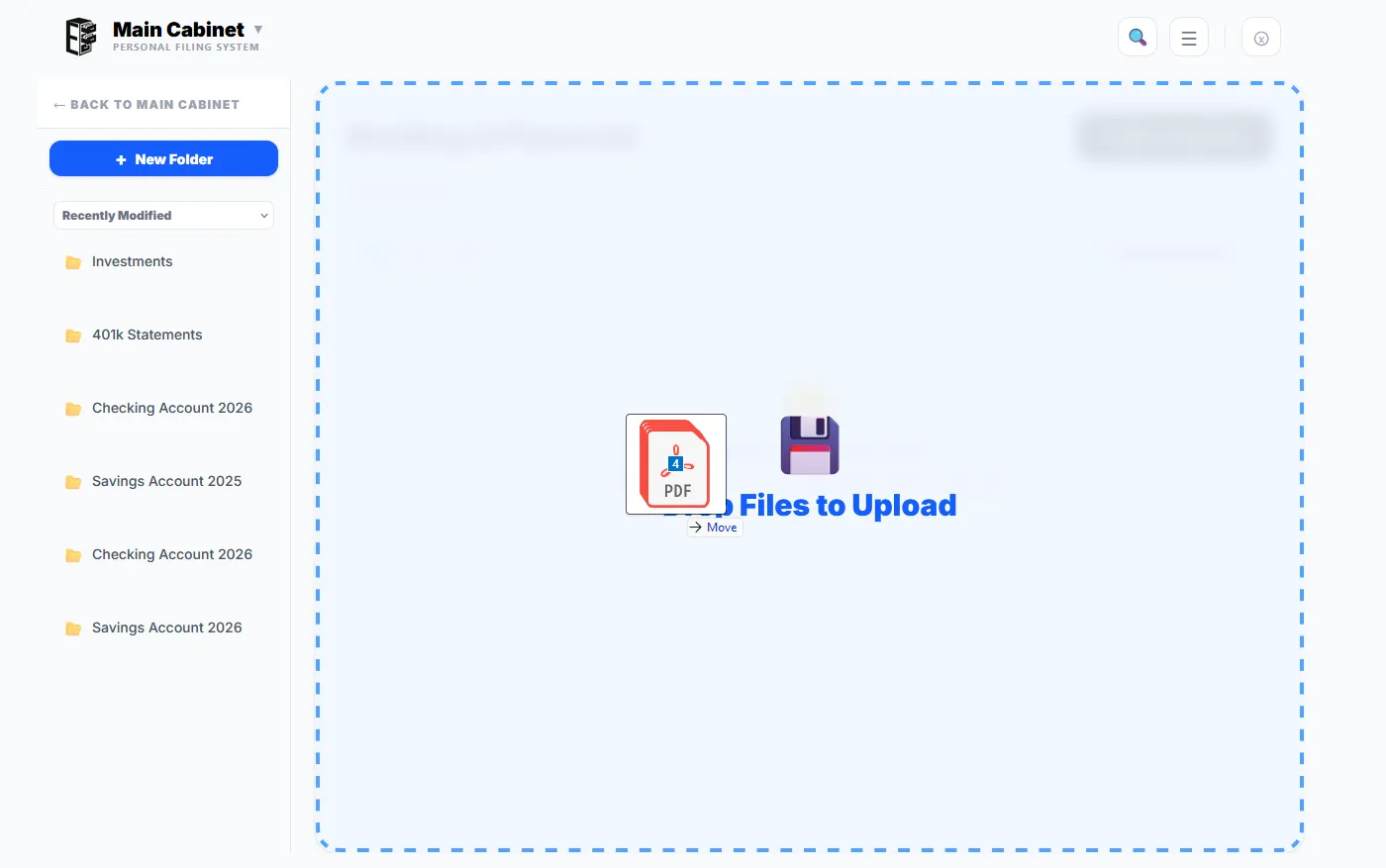
- Drag them from your computer into the drawer or folder in Enoch File where you want them to live.
That’s it. Enoch File uploads them the same way it handles any other file dragged into a drawer.
OneNote specifics
Section titled “OneNote specifics”OneNote stores your notebooks in Microsoft’s cloud by default. To bring files into Enoch File:
- Open OneNote and sync the notebook (or the specific pages) you want to export so the latest versions are available on your computer.
- Export or download the individual files — the process varies by whether you’re using OneNote for Windows, OneNote for Mac, or OneNote on the web, but each version offers an export or print-to-PDF option for pages and attachments.
- Drag the resulting files into your Enoch File drawer or folder.
iCloud, Dropbox, Box, and others
Section titled “iCloud, Dropbox, Box, and others”Each service has its own way of getting files onto your computer — usually a desktop sync app that mirrors your cloud files locally, or a web interface with a download option. Whichever you use, the destination is the same: get the files onto your computer’s hard drive, then drag them into Enoch File.
A few tips for large imports
Section titled “A few tips for large imports”- Upload in batches. If you have hundreds or thousands of files to bring over, work through them a batch at a time rather than trying to upload everything at once. Consider breaking them down by topic and dropping them into different drawers and folders.
- Expect large files to take longer. Videos, high-resolution images, and other large files take noticeably longer to upload than PDFs and Office documents. A batch of PDFs may fly compared to a batch of videos.
- Use Wi-Fi, not cellular. Bulk imports can chew through mobile data quickly. Save these sessions for when you’re on a stable Wi-Fi connection.
- Don’t let your computer sleep mid-upload. If you’re walking away during a long batch, disable sleep so the transfer doesn’t stall halfway through.
For a walkthrough of the drag-and-drop mechanics itself, see Setting up your file cabinet for the first time or whichever Getting Started article introduces the drag-and-drop pattern in your KB.