

Copying Files
Copying a file is useful when the same document logically belongs in two places. For example, you might want a 1099 form in both your Taxes drawer and the drawer for the employer or payee it came from. Rather than having to remember which drawer you filed it in, you can find it in either.
A word of caution: when you search for a document that has been copied, you may turn up multiple results — one for each copy. Use the copy function deliberately. A cabinet with duplicate files everywhere becomes harder to navigate, not easier, so copy only when the same document genuinely needs to live in two distinct contexts.
Copying a single file:
To copy a file, click the 📋 clipboard icon next to the file in the list, or right-click the file and choose Copy. You can also copy a file from the preview screen using the same clipboard icon there.
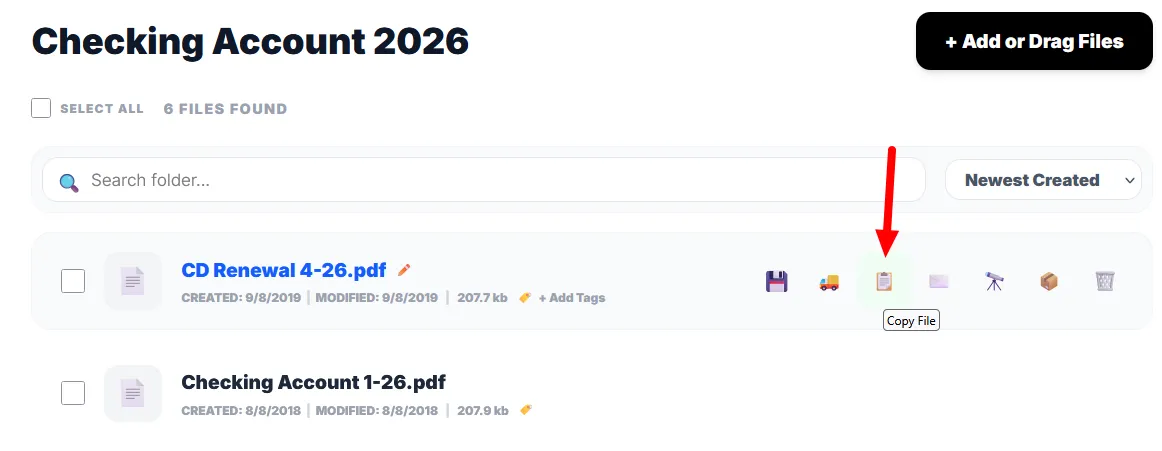
This immediately creates a duplicate and opens the Copy to destination selector.

Copying multiple files:
To copy several files at once, use the checkboxes to select them and then click the 📋 clipboard icon in the bulk action toolbar. See How to Use Bulk Actions for the full walkthrough.
Picking a destination:
The Copy to window works the same way as the Move File window:
- At the top, a Target Cabinet dropdown. Use this to copy the file into a drawer or folder in a different cabinet.
- Below that, a list of drawers in the selected cabinet. Click a drawer’s blue expand arrow to see its folders, then click Drop Here on the destination you want.
Creating a new folder or drawer on the fly:
If the destination you want doesn’t exist yet, you can create it without leaving the Copy to window.
- To create a new folder, expand any drawer and scroll to the bottom of its folder list. Click + Create New Folder, give it a name, then select the newly created folder.
- To create a new drawer, scroll to the bottom of the drawer list and click + Create New Drawer. Give it a name, then select the drawer. If you’re copying a file (not a folder), you can create a new folder inside the new drawer using the same steps as above.
What happens if you close the window without picking a destination?
The copy has already been made, so you’ll have two copies of the file sitting in the current drawer — the original and the new one (renamed with a “Copy of” prefix). You can then move one of them elsewhere at your convenience, or delete it if you changed your mind.