

How to organize cabinets, drawers, and folders
Enoch File lets you arrange your cabinets, drawers, and folders in the order that suits your workflow. Whichever order you set is saved automatically and follows you across devices.
Both cabinet and drawer reordering are launched from the Utility Menu.

Reordering cabinets
Section titled “Reordering cabinets”Cabinets always appear in the order you set them. There is no date or alphabetical option — cabinets are workspace-level containers, and the assumption is that you want them in a deliberate order, not shuffled by activity.
To reorder your cabinets:
- Open the Utility Menu (☰ icon in the top right).
- Select 🎚️ Reorder Cabinets.
- Use the ▲ and ▼ arrows on either side of each cabinet name to move it up or down.
- Close the modal with the ✕ button when you’re done. Changes save automatically as you move things — there is no separate “Save” step.
The Cabinet Selector (accessed by clicking your cabinet name at the top of the screen) always reflects the order you set here.
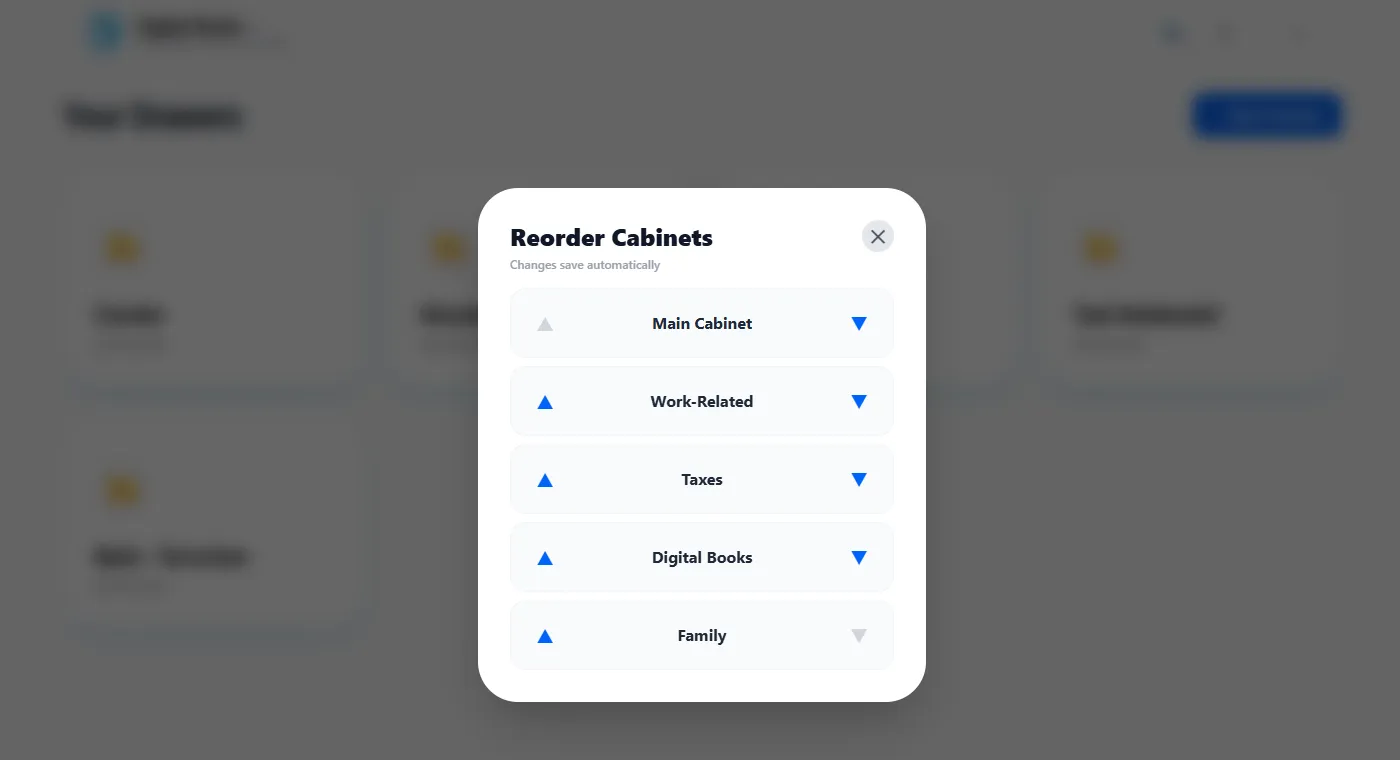
The Reorder Drawers modal and the folder reorder modal (covered further down) look and behave identically to the one shown above.
Reordering drawers
Section titled “Reordering drawers”Drawers, like cabinets, appear in the order you set. Manual ordering is the only option.
To reorder your drawers:
- Open the Utility Menu (☰ icon in the top right).
- Select ↕️ Reorder Drawers.
- Use the ▲ and ▼ arrows to move each drawer up or down.
- Close the modal with ✕ when you’re done. Changes save automatically.
New drawers you create after setting an order will appear at the bottom of the list until you place them where you want.
Sorting folders
Section titled “Sorting folders”Folders are more flexible than cabinets and drawers because they tend to be workflow-driven — often created, filled, and set aside. You get five sort options.
To change how folders are sorted:
- Open a drawer to see its folder list in the Sidebar.
- Use the sort dropdown at the top of the Sidebar.
- Choose from the five options.
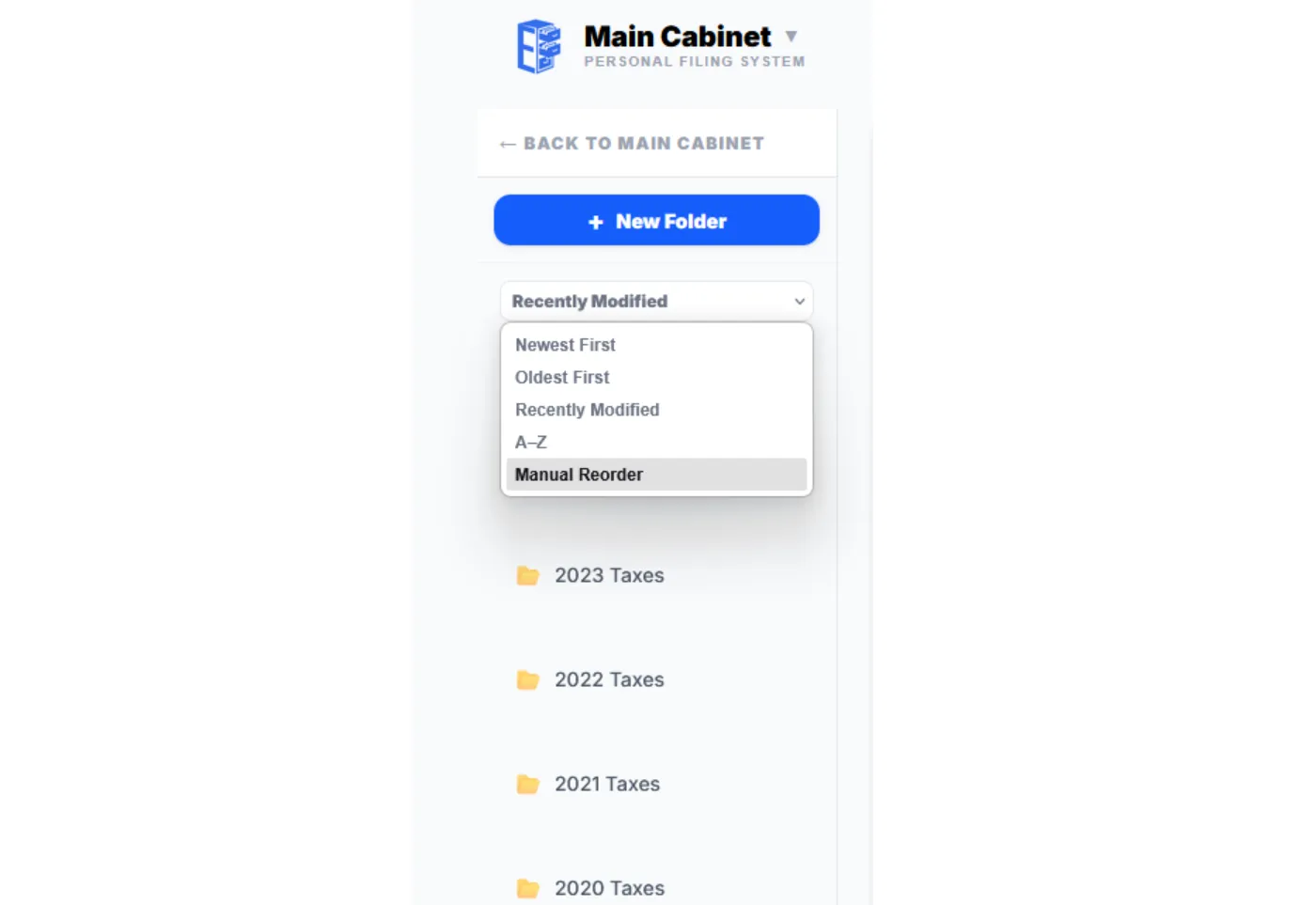
- Newest First — Most recently created folders at the top.
- Oldest First — Oldest folders at the top.
- Recently Modified — Folders with the most recent activity first.
- A–Z — Alphabetical by folder name.
- Manual Reorder — Arrange folders in a custom order you set.
The sort mode you choose is remembered per session. Every user starts fresh with the default option each time.
Manual Reorder mode: When you select Manual Reorder from the dropdown, the reorder modal opens automatically so you can set your initial order right away. Once you’ve placed folders where you want them, close the modal with ✕. To re-open the reorder modal later, tap the ↕️ button that appears next to the sort dropdown whenever Manual Reorder is the active mode. Changes save automatically as you move folders — no separate Save step.
Folders you create after setting a manual order will appear at the top of the list (following the newest-first convention) until you place them where you want.
A note about pinning
Section titled “A note about pinning”Earlier versions of Enoch File let you pin a drawer to keep it near the top of the list. Pinning has been removed. Manual Reorder replaces it — you can now place any drawer (or cabinet, or folder) exactly where you want it, not just pinned to the top.
What about files?
Section titled “What about files?”Individual files inside a drawer or folder are sorted using the dropdown at the top of the file list. Options include Newest Created, Oldest Created, Last Modified, Oldest Modified, and A–Z. Files do not currently support manual reordering — they follow the sort mode you choose. If you need a specific file at the top, renaming it with a leading character (like a numeral or an emoji) is the most reliable way to control its position under A–Z sorting.