

How to Email a File to Enoch File
Email forwarding is one of the fastest ways to get documents into Enoch File. Set up your unique Enoch File email address once, save it to your contacts, and from that point on any receipt, invoice, or important document that arrives in your regular email as an attachment can be forwarded straight into your file cabinet with a single tap.
Email forwarding is a Premium feature.
Get your Enoch File email address
Section titled “Get your Enoch File email address”-
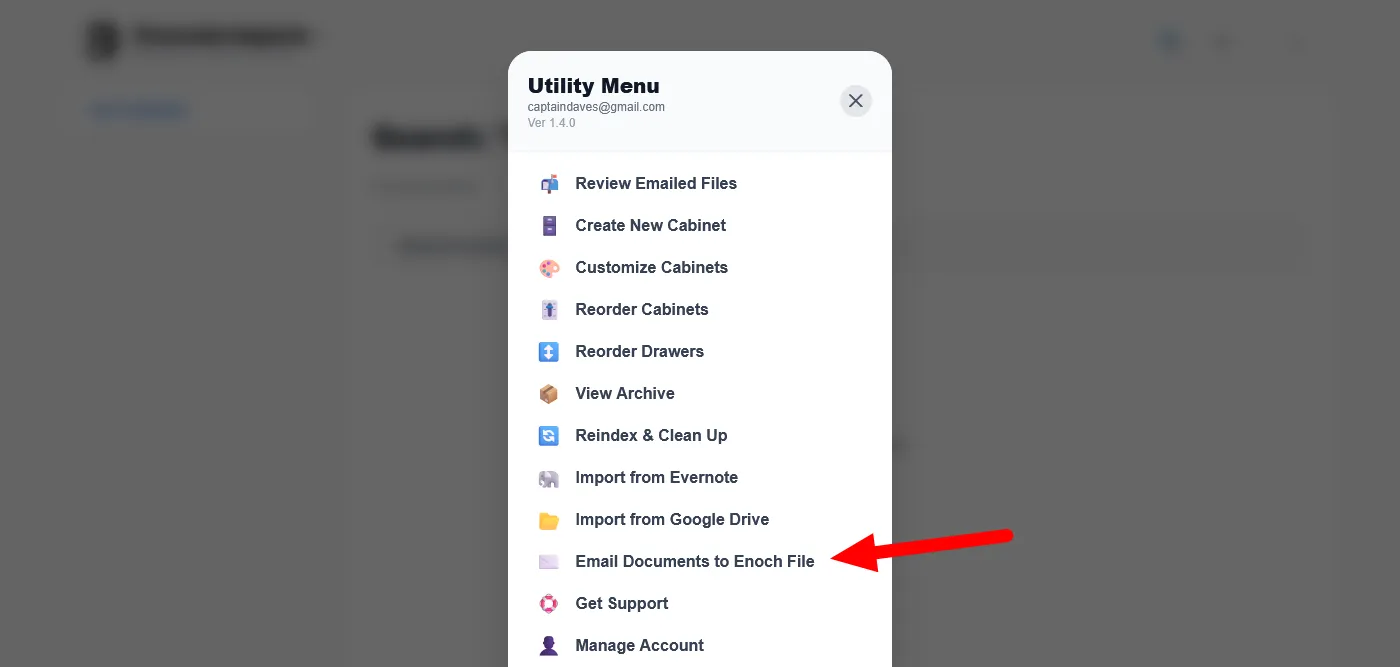
Open the Utility Menu and click Email Documents to Enoch File.
-
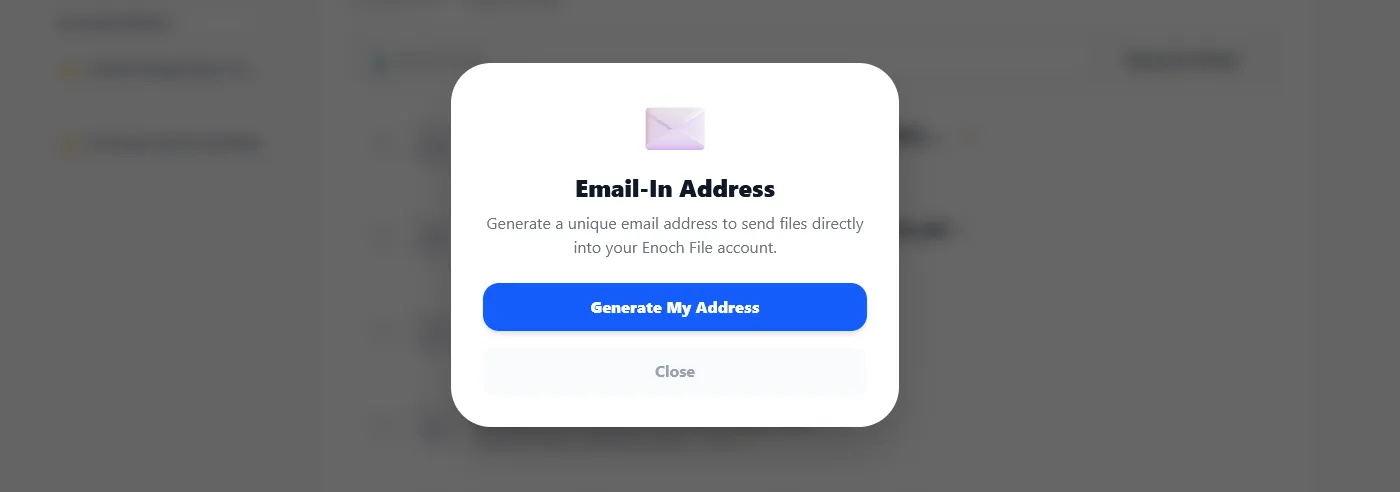
The Email-In Address modal opens. If you’ve never generated one before, click Generate My Address. If you’ve already generated one, this modal is also where you can look it up any time.
-
Save the address to your email contacts. We recommend saving it under a name like “Enoch” so that when you’re forwarding a file, you can type “Enoch” in the To field and let autocomplete fill in the rest.
Important: don’t share this address with anyone else. Anyone who has your Enoch File email address can send files to your cabinet. Treat it like a password.
Send a file to your cabinet
Section titled “Send a file to your cabinet”Once you have the address saved, forwarding a file is as simple as forwarding any other email. When one arrives in your inbox — an insurance renewal, an Amazon receipt, a school registration form — just forward it to your Enoch File address. Enoch File processes the attachment and drops it into your Unfiled Drawer, ready for you to file properly the next time you log in.
A few things to know about how email forwarding works:
- By default, only the attachment is saved. If an email arrives with an attachment and no
-ALLin the subject, Enoch File keeps the attachment and discards the body. - Add
-ALLto save the body too. If you want the cover note or email body kept alongside the attachment, add-ALL(or-all) to the end of the subject line before you send. Enoch File saves the message body as a text file and files it in a folder with the attachment so they stay together. This also works when you want to save an email that has no attachment — send it to your Enoch File address with-ALLin the subject and the body will be saved on its own. - Emails without an attachment and without
-ALLare ignored. If you send a message that has neither an attachment nor-ALLin the subject, Enoch File discards it silently. Nothing is saved and nothing is flagged as an error, so if you’re expecting a file to show up and it doesn’t, check that one or the other was in play. - Multiple attachments become a folder. If a single email has more than one attachment, Enoch File groups them into a folder in your Unfiled Drawer so they stay together.
Review your forwarded files
Section titled “Review your forwarded files”To see what’s been forwarded and file it into its proper drawer or folder, open the Utility Menu and click Review Emailed Files — the first entry in the menu.

That opens your Unfiled Drawer, where forwarded files land. Use the Move command to send each one where it belongs.