

How to Use Bulk Actions
Enoch File supports several bulk actions for managing multiple files at once. Whether you’re organizing after an import, cleaning out old records, or emailing a batch of receipts to your accountant, bulk actions save you from repeating the same step dozens of times.
To get started, click the checkbox to the left of each file you want to include, then choose your action from the toolbar that appears at the top of the file list.
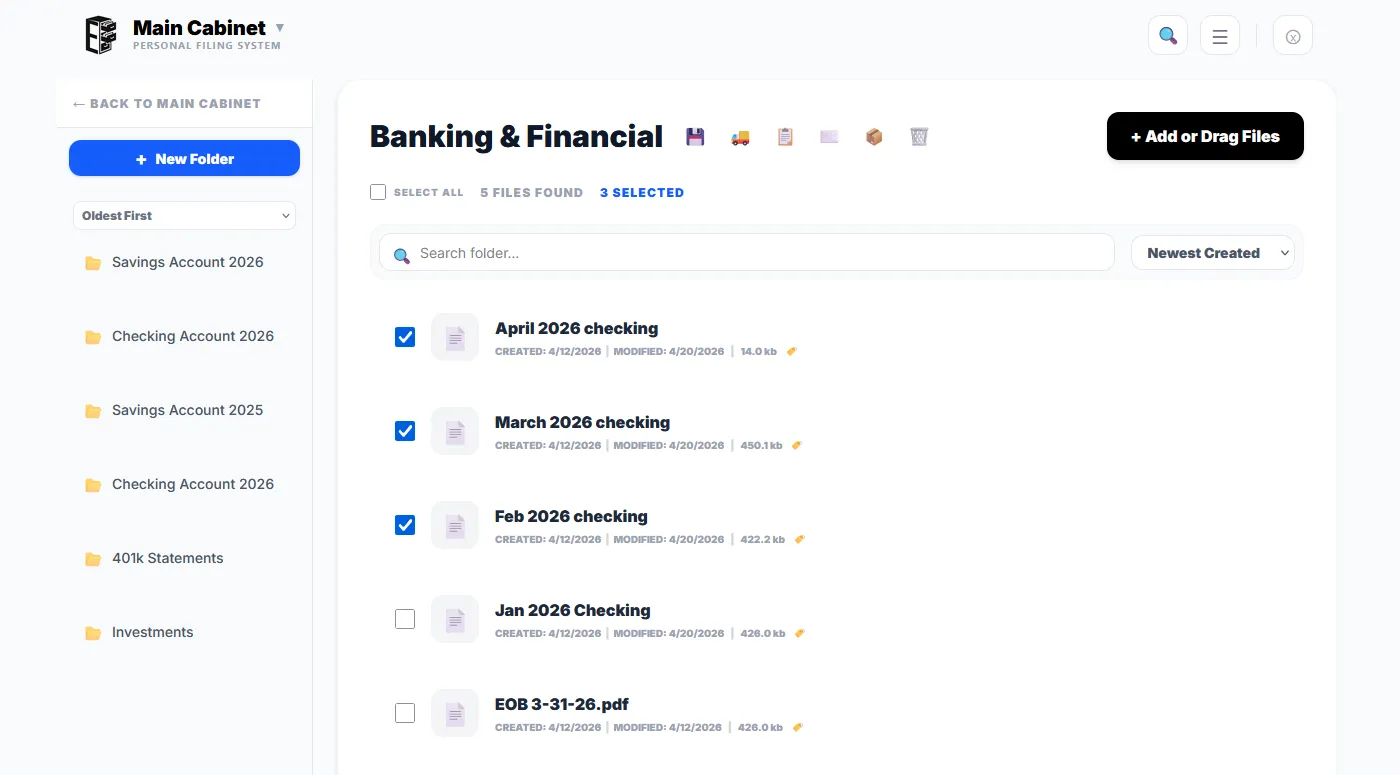
The available bulk actions:
- 🚚 Bulk Move: Relocate selected files to a different drawer or folder. See Moving Files, Folders, and Drawers for how the destination selector works and how to create a new folder or drawer on the fly.
- 📋 Bulk Copy: Duplicate selected files and send the copies to another location. See Copying Files for details.
- ✉️ Bulk Email: Send selected files as email attachments (Premium). Limit: up to 10 files, or approximately 20 MB total, per email.
- 💾 Bulk Download: Download selected files to your device. If you download 6 or more files at once, they are automatically compressed into a single ZIP file for convenience. Very large batches — many gigabytes or thousands of files at once — may fail if your browser runs low on memory. For batches that big, download in smaller groups.
- 📦 Bulk Archive: Send selected files to the Archive Vault (Premium). We recommend archiving over deleting whenever possible.
- 🗑️ Bulk Delete: Send selected files to the trash. Bulk delete is capped at 50 files at a time as a safeguard against accidental deletion — if you select more than 50 and click Delete, Enoch File will stop you with a message and suggest archiving instead. Trashed files are permanently deleted after 30 days.
About large batches:
Except for the 50-file cap on bulk delete, Enoch File doesn’t limit how many files you can act on at once. Move, copy, archive, and download all work in batches of any size.
Note, though, that bulk operations run one file at a time — a batch of 200 copies means 200 sequential steps. A progress indicator shows you what’s happening, but larger batches take real time. If you’re on a slow connection, expect several seconds per file for moves and copies.
A tip for selecting large batches:
If you want to act on every file in the current folder, click Select All at the top of the file list rather than checking each box individually. This selects every file in the folder, not just the ones visible on your screen. You can then deselect any files you want to exclude.
A note on deleting:
Enoch File exists to help preserve your data in a way that makes it easy to find when needed. If something was important enough to store here, we encourage you to archive it rather than trash it. Archiving keeps it out of sight but recoverable; trashing makes it gone forever after 30 days.