

About Enoch File: Scan & Save
Enoch File: Scan & Save is the mobile companion to Enoch File — a free app for iPhone and iPad that lets you scan documents with your phone’s camera, upload photos and videos from your camera roll, and file everything into your existing cabinets, drawers, and folders from wherever you happen to be. (Android version coming soon.)
It’s built for the paperwork of real life — the receipt that just came out of the register, the school form the kids just handed you, the piece of mail sitting on the counter — where a phone is already in your hand and a computer isn’t. Point it at a document, tell it where to file the scan, and the app takes care of getting it into your Enoch File.
Like the web app, Scan & Save works with your own Google Drive as storage. Nothing lives on Enoch Worx servers, and new uploads go directly into your Drive, in the folders Enoch File created — no separate mobile-only storage system, no sync gap between phone and computer.
What you can do
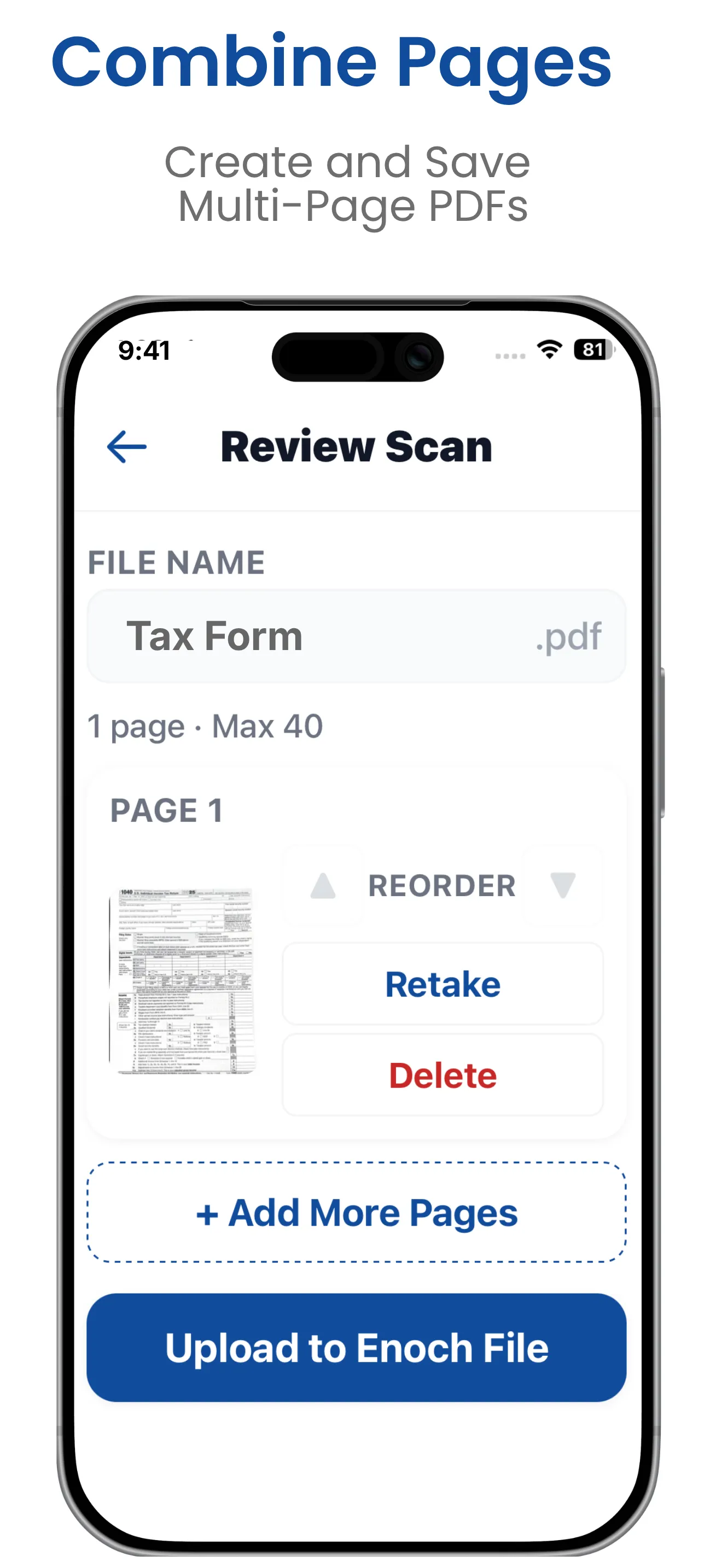
Section titled “What you can do”- Scan multi-page documents. The scanner detects page edges automatically and combines all your pages into a single PDF. Review the scan before uploading — reorder pages, retake individual shots, delete mistakes, and set the filename.
- Upload photos and videos from your camera roll. Send originals straight into a cabinet, drawer, and folder of your choice.
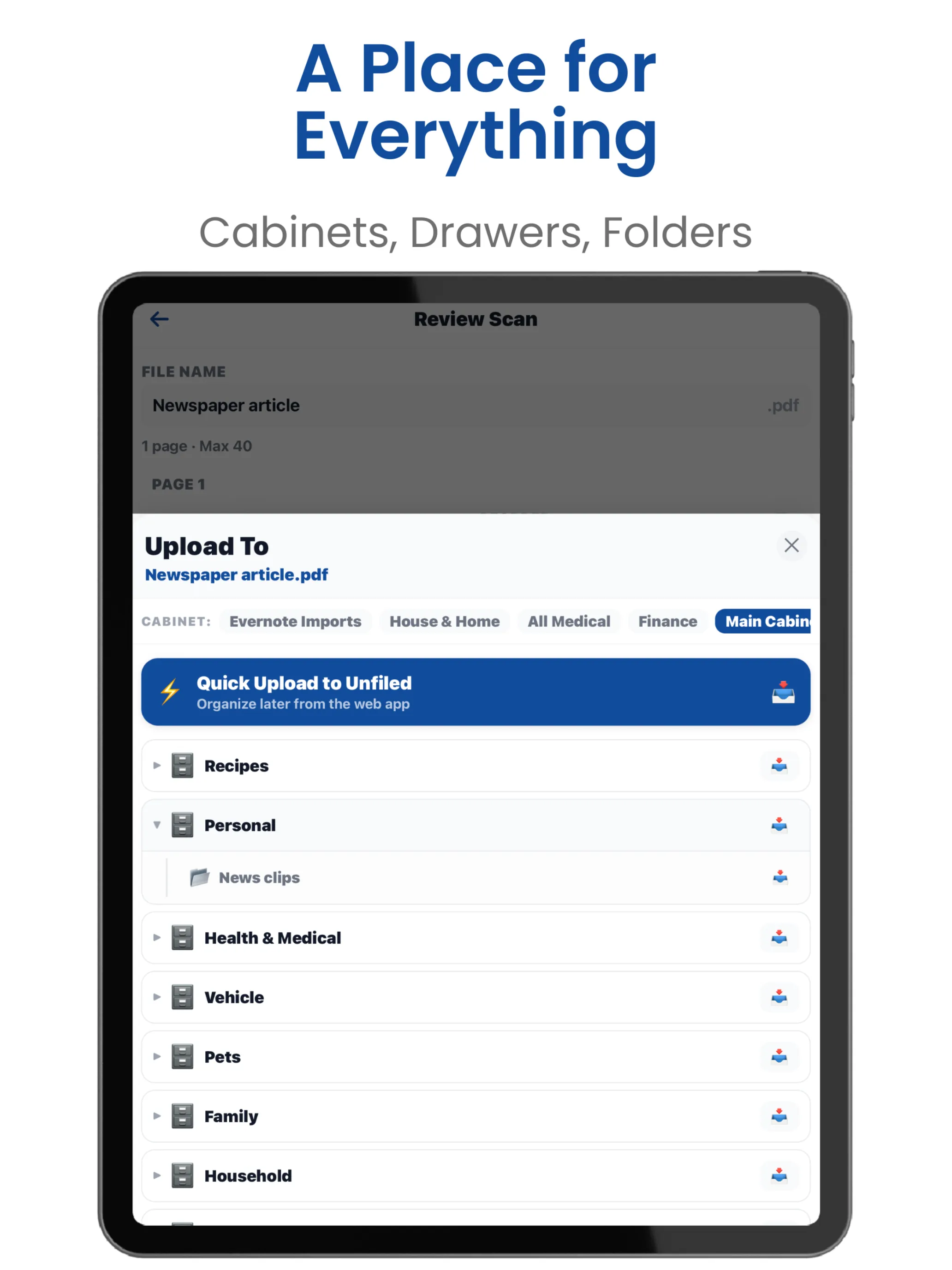
- File right where you want it. After each scan or upload, pick the destination cabinet, drawer, and folder in the app. Files land in the same place they would if you’d uploaded from the web app.
- Create new drawers and folders on the go (Premium). If the cabinet you want doesn’t have the drawer or folder you need yet, make it from the folder picker without leaving the upload flow.
- Background uploading with automatic retry. Uploads keep running while you use the rest of the app, and if your connection drops mid-upload, the app retries automatically once you’re back online.
- Face ID or Touch ID lock (optional). Turn on biometric unlock so the app requires your face or fingerprint each time you open it. Off by default.
- Wi-Fi-only mode. Toggle uploads off cellular data — handy when you’re on a metered plan or a slow connection.
- Searchable scans, automatically. Google’s OCR runs on your scans in Drive so the text inside your PDFs becomes searchable in Enoch File.
How it fits with Enoch File
Section titled “How it fits with Enoch File”Scan & Save is a one-way pipeline into Enoch File — not a mobile version of the web app. Viewing, searching, moving, tagging, and everything else you’d do with an existing document still happens in Enoch File on your desktop, laptop, or tablet browser. What the mobile app adds is the fastest way to get something new into the right place.
The cabinets, drawers, and folders you’ve set up on the web appear immediately in the mobile app’s folder picker, so a scan or a photo goes straight where you want it — no email, no attachment step, no “I’ll file it later from my desktop.” Compared with emailing yourself a document, the mobile app is faster (no inbox to bounce through) and more precise (you’re picking the exact drawer and folder as you upload, not landing in a general inbox to sort later).
What you’ll need
Section titled “What you’ll need”An Enoch File account (Free or Premium works — the app itself is free either way) and a Google account for sign-in and Drive storage. If you don’t have an Enoch File account yet, sign up at enochworx.com/signup.
How to get it
Section titled “How to get it”The app isn’t in the App Store or Google Play yet, but if you have an iPhone and are willing to give us feedback in exchange for early access, you can join the beta through Apple’s TestFlight program. See How can I get the Enoch File mobile app? for the request process.